
Table of Contents
Key Takeaways
- The “Post is currently being edited” message appears when multiple users open the same post in WordPress.
- It’s meant to prevent content overwrites but often disrupts team workflows. Quick fixes like refreshing or taking over work temporarily.
- Multicollab solves this by moving all teamwork inside WordPress. Result: no more edit locks, duplicate edits, or lost feedback — just smoother publishing.
If you’ve ever opened a post in WordPress and seen the message:
“Post is currently being edited by another user”?
You’re in the middle of a deadline, trying to make a quick change but WordPress blocks you from editing.
The feature exists for a good reason: it prevents two people from overwriting each other’s work.
Still, in a busy content team, it often causes confusion, delays, and duplicate edits.
This guide explains why the message appears, quick ways to fix it, and how Multicollab solves the root problem so your team can collaborate inside WordPress without ever running into that warning again.
Why the error “Post is currently being edited” shows up
WordPress uses a feature called post locking to prevent two users from saving the same post at the same time.

When someone opens a post in the editor, WordPress “locks” it so others can’t accidentally overwrite their changes.
That system usually works well until something interrupts it. The lock might stay stuck if:
- Someone closes their browser without exiting properly.
- The computer goes to sleep or loses internet connection.
- Two people open the same post at nearly the same moment.
These are small issues that can create big workflow slowdowns. And in teams where editors, writers, and reviewers all share one dashboard, this warning tends to appear more often than it should.
Quick fixes to fix “Post is currently being edited” issue
If you’re stuck with the “Post is currently being edited” message, don’t panic. Most of the time, it’s a simple temporary lock that clears on its own.
Here are a few safe ways to fix it right away:
- Ask your teammate if they still have the post open. Once they close it, the lock disappears instantly.
- WordPress lets you take over editing, but only do it after confirming the other person is done. Otherwise, you might overwrite their work.
- Sometimes, the system just needs a minute. Refresh the page after 30–60 seconds and the lock usually clears automatically.
- If it’s still stuck, an admin can reopen and update the post to reset the lock. That’s the safest way to remove a stale lock.
These quick fixes solve the problem for now. But if your team keeps running into this message, it’s a sign that your editing workflow needs an upgrade.
The real problem with “Post is currently being edited” issue

Most WordPress content teams rely on a mix of tools to get content published.
Writers draft inside WordPress, reviewers give feedback in Google Docs, and editors approve content through Slack or email. When it’s time to finalize, everyone jumps into the same post at once and WordPress throws the lock warning.
So the real problem isn’t WordPress itself. It’s the scattered collaboration process that forces multiple people into “Edit” mode just to communicate.
The fix? Rethinking how your team collaborates on content directly inside WordPress.
The permanent fix: Collaborate without edit locks
The real solution is to stop crowding the same post.
That’s exactly what Multicollab was built for.
Multicollab lets everyone collaborate inside WordPress without fighting for the “Edit” button.
Writers keep editing. Reviewers leave comments. Approvers give feedback or sign-off—all in one place.

Instead of multiple people opening the editor, feedback happens around the post through inline comments, suggestions, and task checklists.
The result: fewer edit conflicts, faster publishing, and zero “post is currently being edited” errors slowing your team down.
What changes with Multicollab
Once your team starts using Multicollab, the way you work in WordPress changes completely. You no longer need five different tools to write, review, and approve content. It all happens in one place.
Here’s how each feature helps prevent the “Post is currently being edited” issue:
1. Real-time Collaboration
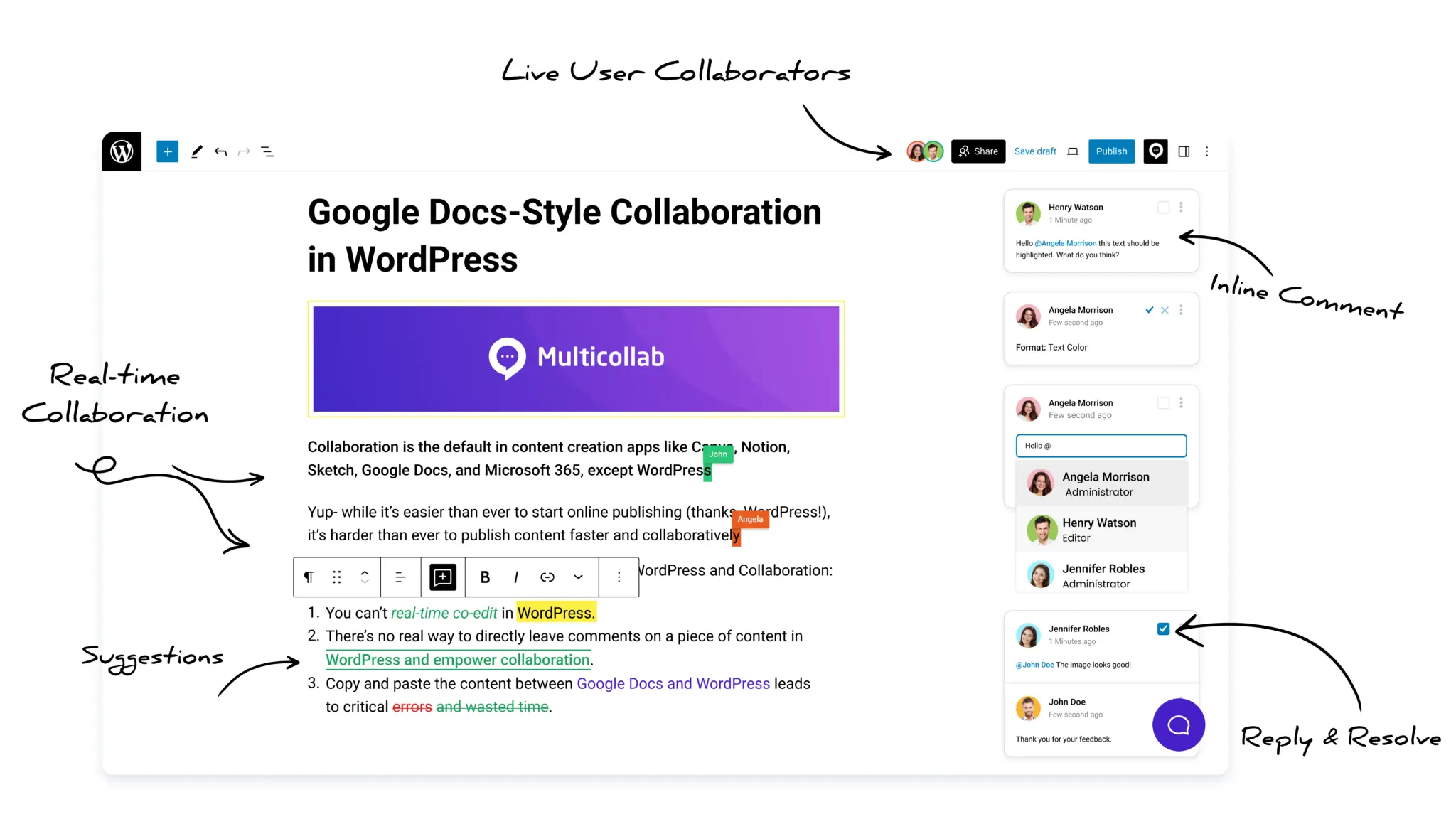
Work together on the same post at the same time. Writers, editors, and designers can make updates side by side without blocking each other.
(Supports up to five users; not active with Suggestion Mode.)
2. Inline Comments
Click on any text or media inside Gutenberg to leave comments (just like Google Docs) and reviewers can share feedback without entering edit mode, so post locks never appear.

3. Suggestion Mode
Teammates can propose edits you can accept or reject later. It keeps your workflow safe and review-friendly, perfect for asynchronous teamwork.
4. Team Collaboration Tools
Use mentions, replies, and comment threads to keep discussions organized. You can attach screenshots, documents, or videos for context, all right inside WordPress.
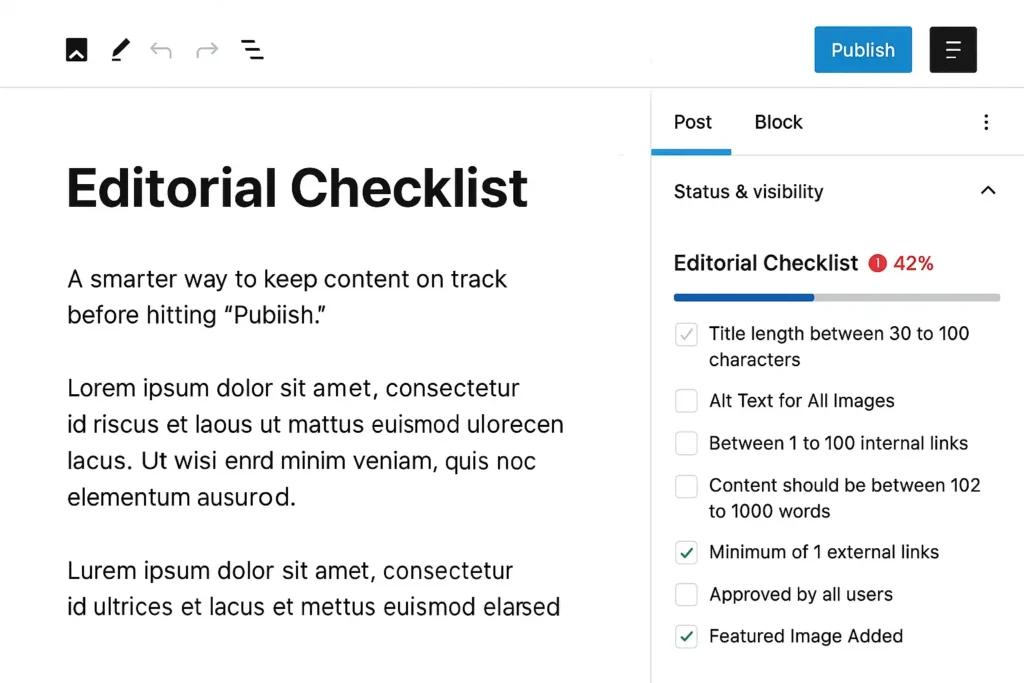
5. Editorial Checklist
Track progress and enforce standards with built-in editorial checklists. Tasks can be marked required or optional, keeping everyone accountable and aligned.
6. Email and Slack Notifications
No more “Did you see my comment?” pings. Mentions and replies automatically notify your teammates where they already work.
7. Guest Collaboration
Invite clients or external reviewers with secure one-click access. They can view or comment on drafts without needing a WordPress account.
8. Reports and Activity Dashboard
See who’s working on what with a full activity timeline. Monitor all comment activity, track progress, and spot bottlenecks early.
9. Custom Permissions
Control who can comment, resolve, or accept suggestions. This keeps your workflow clean and prevents unwanted edits or approvals.
Together, these features eliminate the constant “who’s editing” confusion and turn WordPress into a true collaborative workspace.
Which Multicollab feature to use, and when
Different teams need different ways to collaborate. Here’s how to choose the right Multicollab feature for the situation:
When multiple people need to edit together → Use Real-time Collaboration
Perfect for live sessions, last-minute content tweaks, or publishing sprints. Everyone can make changes together, without seeing the lock message.
When you want reviewable, safe edits → Use Suggestion Mode
Reviewers can suggest changes that writers approve later. There is then no need for overwrites or confusion as every change is tracked clearly.
When you just need feedback → Use Inline Comments
Ideal for small edits, design notes, or content suggestions. Comments stay attached to exact text or media blocks.
When you need structure and accountability → Use Checklists, Permissions, and Reports
Keep posts on track with checklists. Define who can comment, approve, or edit. Use reports to monitor progress across the entire content pipeline.
By matching the right feature to the right workflow, your team never has to “take over” someone’s post again.
A simple workflow that kills the ‘Post is currently being edited’ issue
Once you set clear rules for collaboration, the “post is currently being edited” problem disappears on its own. Here’s a simple, proven workflow that works for any WordPress team using Multicollab:
- Assign one “editor of record”: Only one person should be in full edit mode at a time. Everyone else uses comments or suggestions.
- Keep reviews outside edit mode: Reviewers should give feedback using Inline Comments or Suggestion Mode, not by opening the editor directly.
- Use mentions instead of messages: Tag teammates in comments to notify them instantly through email or Slack. No need to ping them separately.
- Track readiness with the Editorial Checklist: Make sure every post meets your publishing standards before approval.
- For team sprints, use Real-time Collaboration: When deadlines are tight, enable real-time editing so everyone can contribute safely together. And then switch back to Suggestion Mode for final review.
Conclusion
The “Post is currently being edited” message might seem like a small annoyance, but for busy WordPress teams, it can break focus and delay publishing.
Fixing it temporarily is easy but preventing it for good requires a smarter way to collaborate.
Try Multicollab today so that your team can write, review, and approve content together inside WordPress without overlapping edits or tool-switching.
No more edit locks. No lost feedback. Just smooth, organized teamwork that helps you publish faster.
FAQs:
How can I remove the “Post is currently being edited” message?
You can wait a minute and refresh the page, ask the other user to close the post, or let an admin reopen and update it. These quick fixes work temporarily but don’t solve the workflow issue that causes it to happen repeatedly.
How does Multicollab prevent the “Post is currently being edited” issue?
Multicollab removes the need for everyone to open the same post at once. Team members can comment, suggest edits, and approve content directly inside WordPress — without entering “Edit” mode. That means no overlapping sessions and no more lock messages.
Can multiple people edit the same WordPress post simultaneously?
Yes. With Multicollab’s Real-time Collaboration, up to five users can edit the same post together. It’s perfect for co-writing sessions or last-minute publishing work. When Suggestion Mode is active, real-time editing is disabled to protect version history.
How can I prevent last-minute content collisions?
Use Editorial Checklists to ensure every post meets publishing standards and Reports to track team progress. These tools help everyone stay aligned and reduce the need for multiple people to enter the editor at the same time.
Download a Free Actionable Guide: 45+ Actionable Tips to Optimize Performance for High-Traffic WordPress Websites
Performance Optimization Techniques: Speed up your site with caching, image compression, and code minification.
Hosting and Scalability Suggestions: Learn to choose the right hosting solutions and scale efficiently.
Security and Protection Guidelines: Safeguard your site from DDoS attacks, malware, and performance threats.
Content and Plugin Management Tips: Optimize your database, plugins, and themes for peak performance.