

Table of Contents
Multicollab is a WordPress editorial collaboration plugin that brings inline commenting, suggestion mode, and real-time editing into the block editor, so teams collaborate without leaving WordPress.
Collaborative editing in WordPress can be a game-changer when your team has the right tools. Bringing contributors together in real time streamlines workflows, improves communication, and makes collaborative projects far more efficient.
Key Takeaways
- Get familiar with Multicollab’s core features first: inline comments, suggestion mode, notifications, and the activity timeline.
- Define clear roles and responsibilities before editing starts to avoid overlapping edits.
- Use real-time co-editing for live collaboration and suggestion mode for tracked, reviewable changes.
- Slack and email notifications keep distributed teams aligned without constant check-ins.
- Invest a little time in training so the whole team adopts the tool smoothly.
Whether you are a seasoned WordPress user or new to collaborative editing, this guide will help you get a smoother, more productive experience. If you want to improve how your team collaborates in WordPress, Multicollab is a strong place to start. Below are practical tips to help you make the most of it.
Understanding Multicollab basics
Before diving in, get familiar with the features you’ll use most:
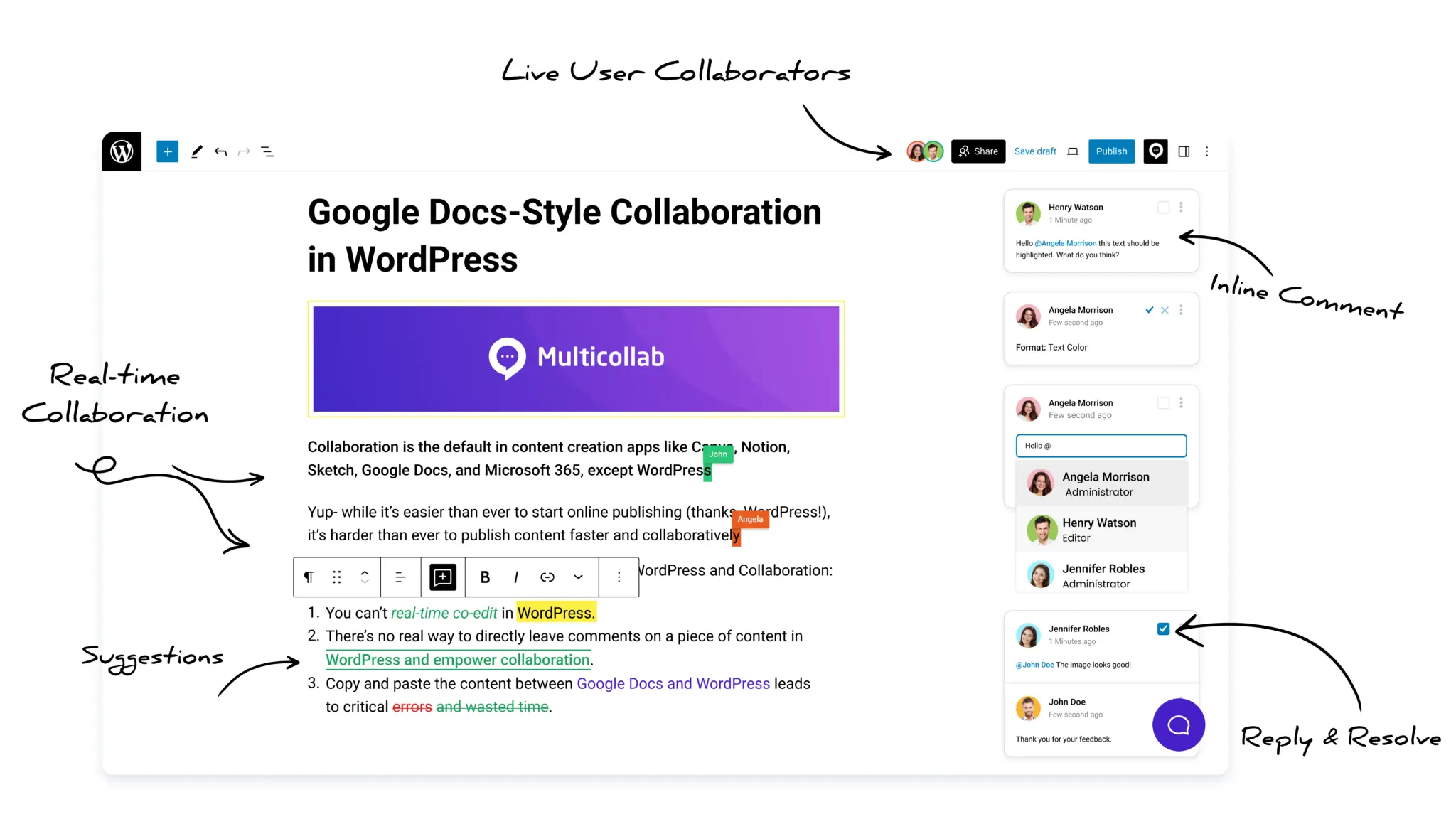
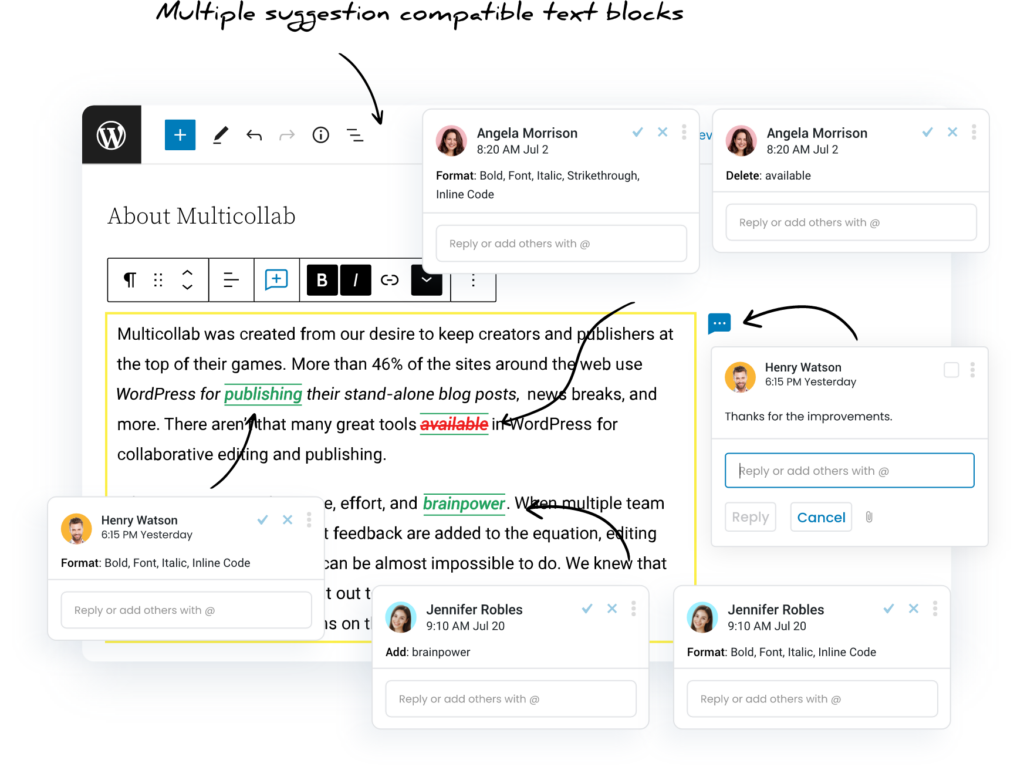
Suggestion Mode: Propose edits as color-coded tracked changes that reviewers can accept or reject, individually or in bulk.inline comments for review by others.
Inline Comments: Add comments on any part of the content inside the block editor.
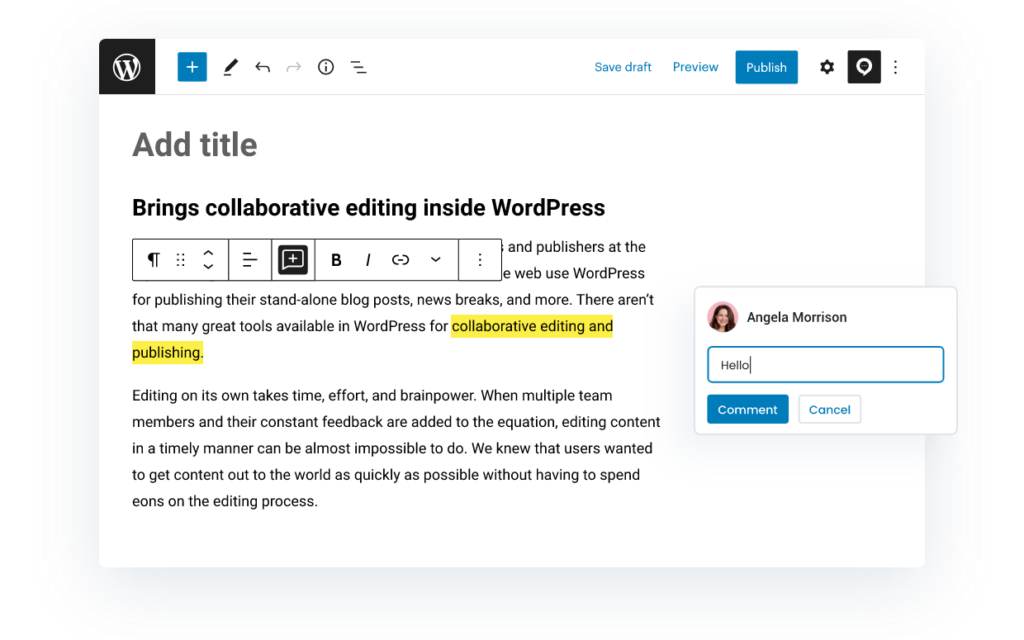
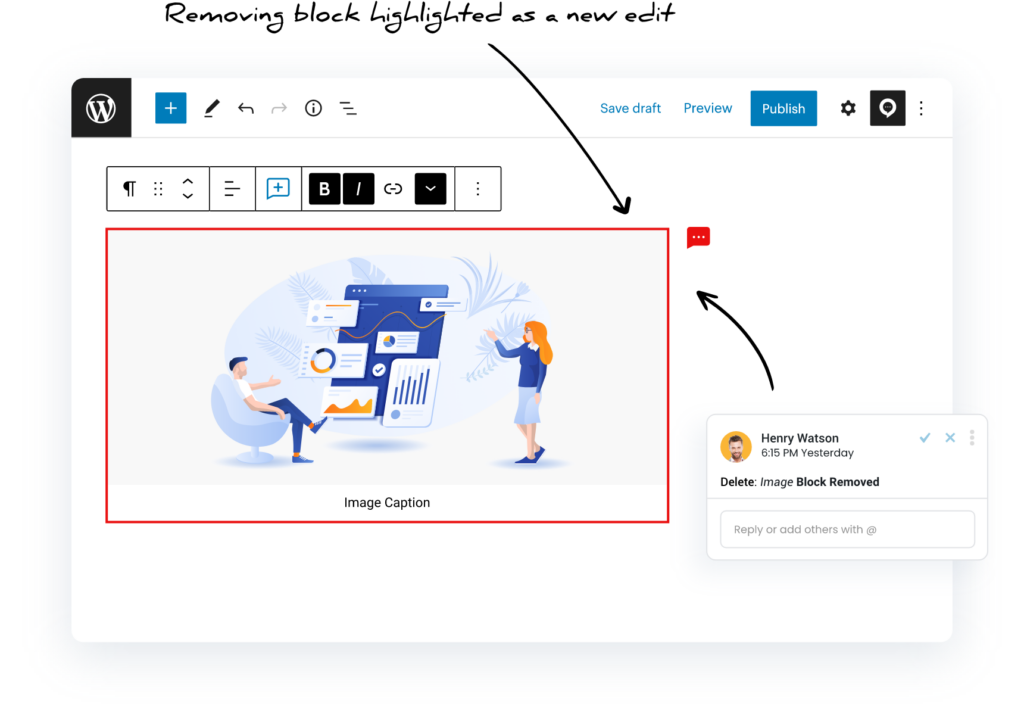
Highlighted Edits: See added and deleted content clearly, making it easy to accept, reject, and collaborate on changes.
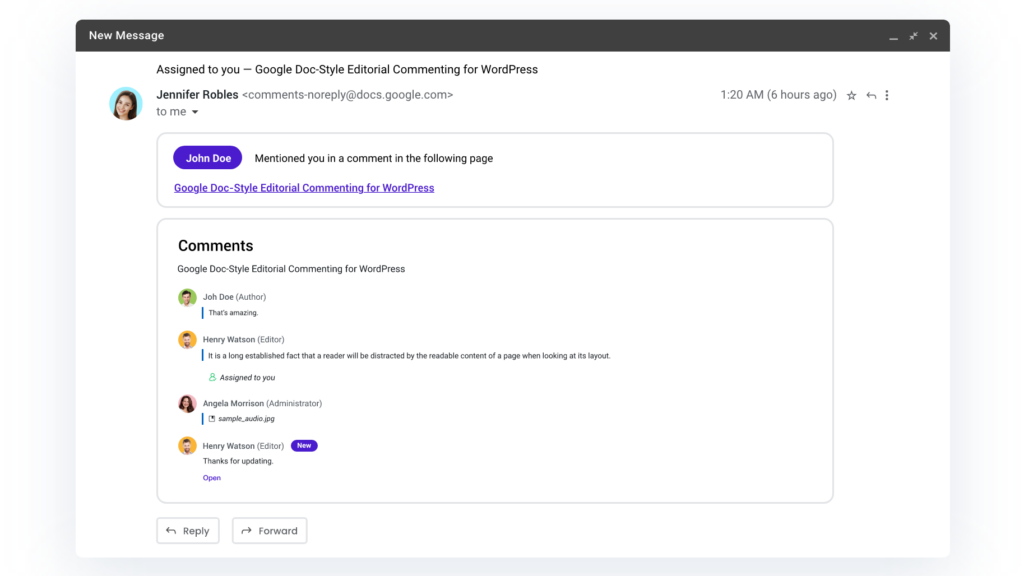
Email Notifications: Get notified when you are mentioned, so you can join the conversation quickly.
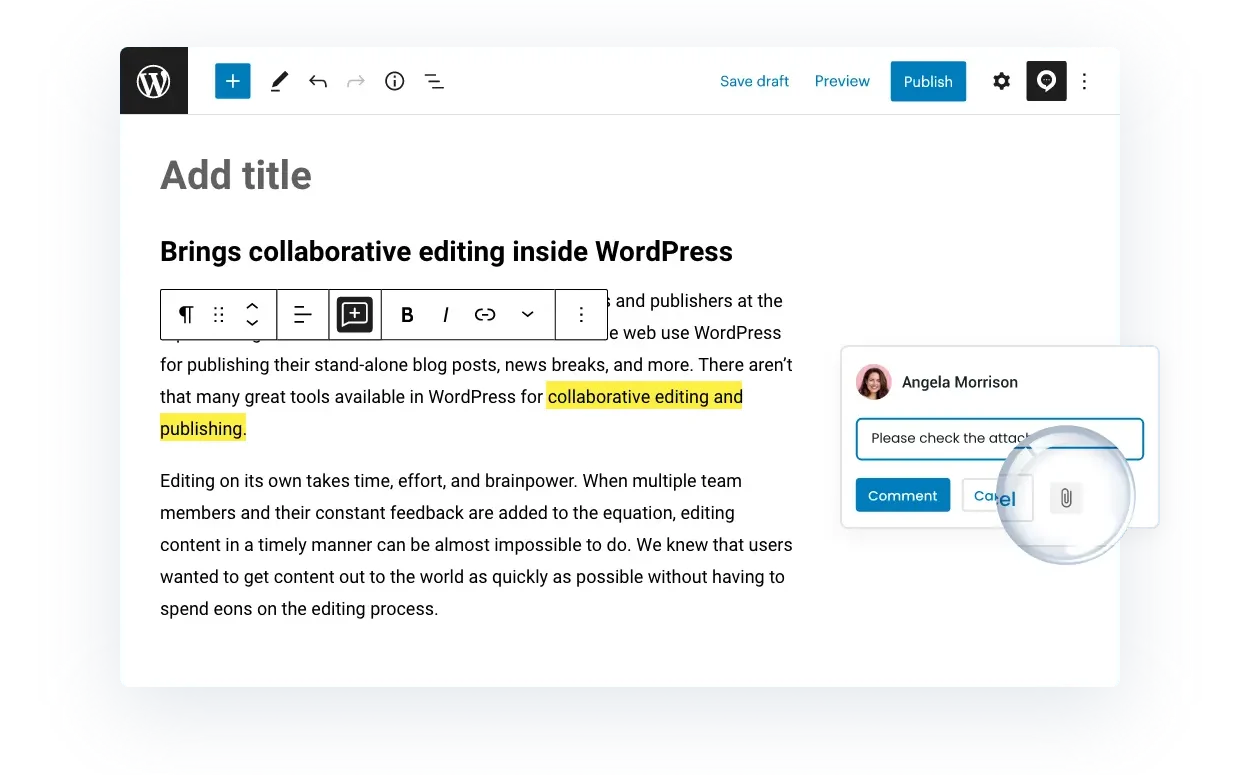
Add Attachments to Comments: Attach images or documents to comments and replies.
Role-based Permissions: Configure permissions for your existing WordPress roles to decide who can manage comments and suggestions.nage comments and suggestions in Multicollab.
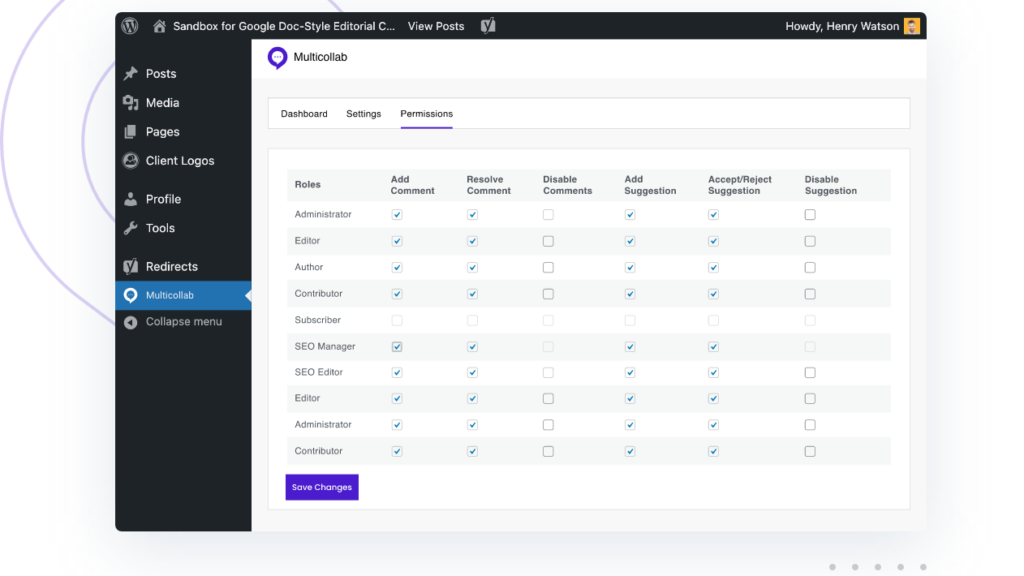
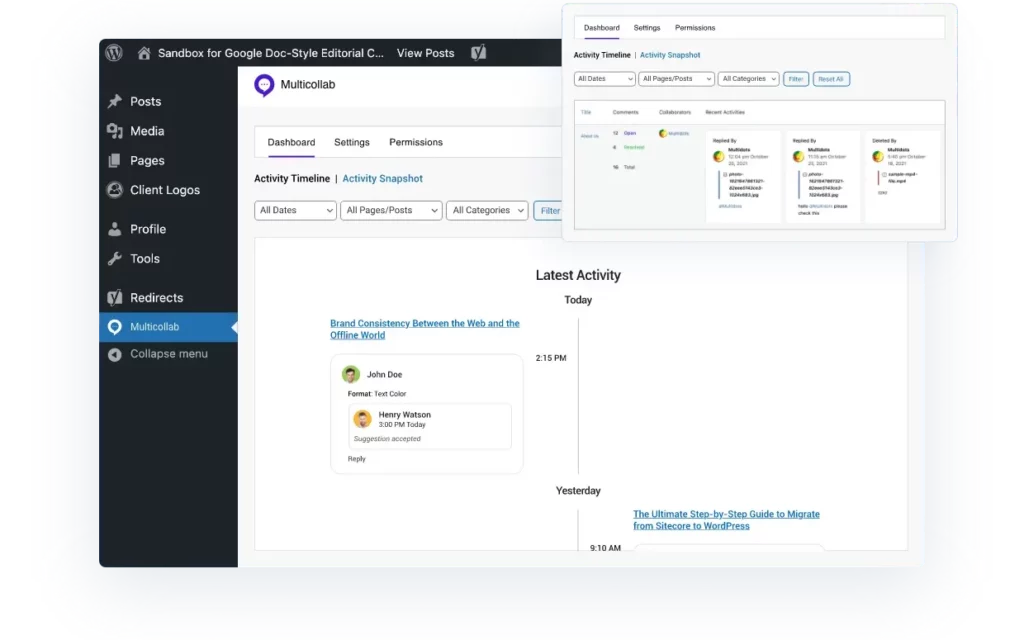
Reports and Activities: Track progress across all pages and posts, filtering by user, content category, and time.
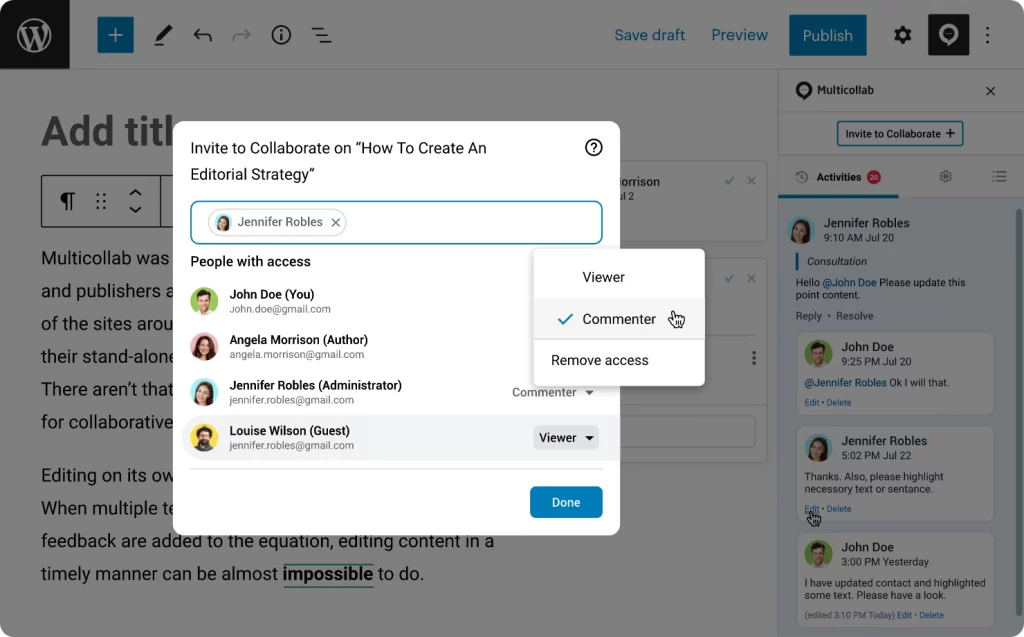
Guest Collaboration: Invite guests by email or link with Viewer, Commenter, or Co-Editor access, no WordPress account needed. Guest links expire after 24 hours.
Multilingual: Use Multicollab in multiple languages, including German, Chinese, Hindi, Spanish, French, and Bengali., Chinese, Hindi, Spanish, French, and Bengali.
Collaborative Reviews: Support team feedback throughout the publishing process
Mentioning Users: Invite people to collaborate and comment on a post by mentioning them.
Level up with Multicollab
Here are a few best practices that can help you supercharge your editorial workflows with Multicollab.
Establish Clear Roles and Responsibilities:
Define roles within your team to streamline editing. Assign specific responsibilities to each member for a well-organized workflow. This clarity reduces overlapping edits and promotes accountability, giving everyone a clear view of their assignments, deadlines, and priorities.
Leverage Version Control:
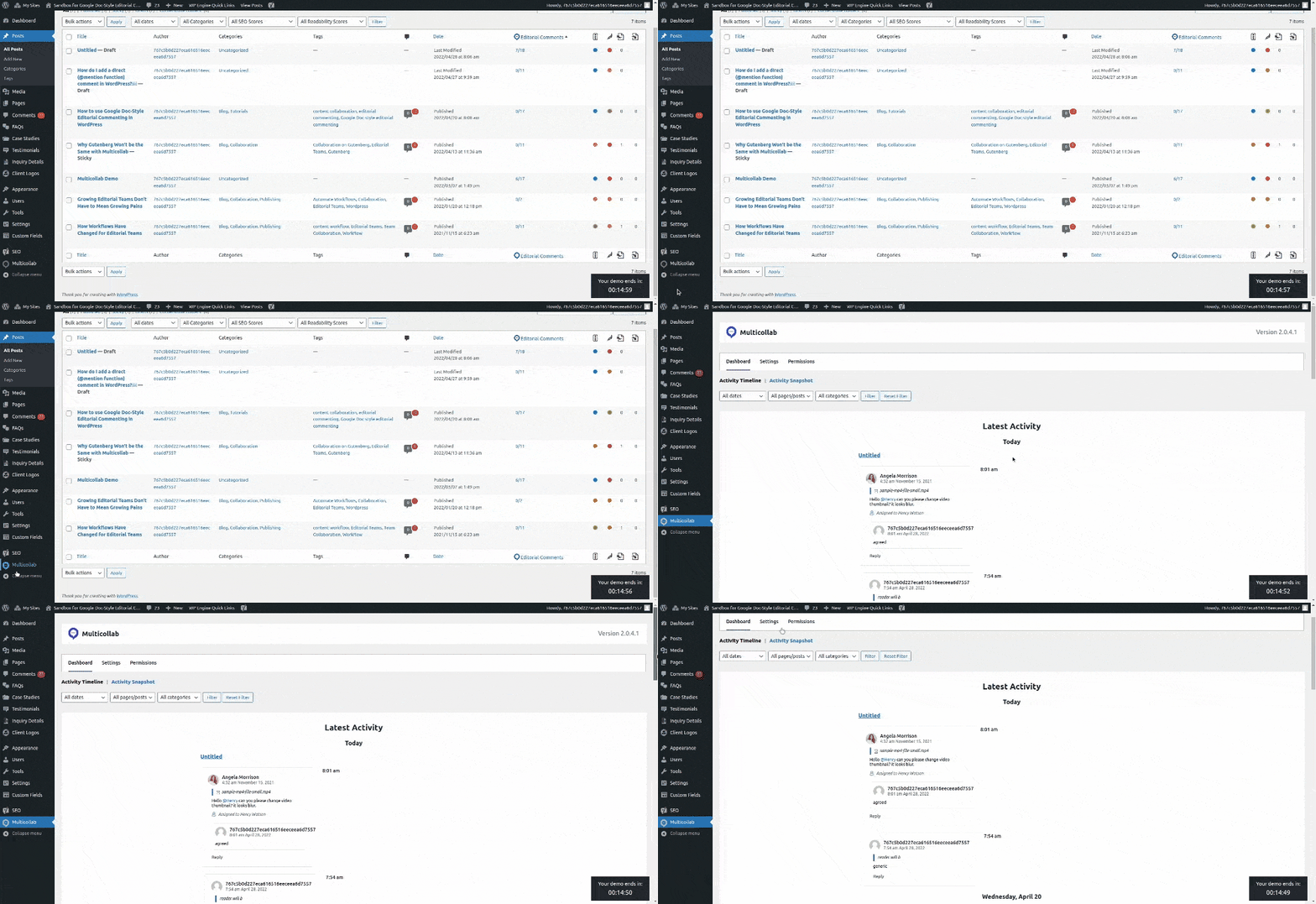
Multicollab keeps a detailed record of revisions through its Activity Timeline and Quick Snapshot Reporting, giving you a clear, filterable history of edits by user, category, and time. This audit trail helps maintain transparency, resolve conflicts, and review content history.
Use Real-time Communication:
Clear, quick communication prevents misunderstandings. Use Multicollab’s real-time co-editing to work with multiple users at once and edit content together live, right in the WordPress interface, so teams can make instant changes and watch content come together.
Regular Check-ins and Updates:
Schedule periodic check-ins to review progress, address challenges, and keep everyone aligned. Multicollab’s Slack notifications help here, giving collaborators real-time updates on mentions, replies, and comment activity in the channel they already check all day.
Training and Familiarization:
Set aside time to get everyone comfortable with Multicollab. Familiarity reduces the learning curve and smooths the workflow. The Multicollab Help Center is an extensive resource with detailed video tutorials that can help you familiarize yourself with the plugin’s features.
Encourage Open Communication:
Create an environment where people feel comfortable sharing ideas, giving feedback, and asking questions. Open communication fuels creativity and makes sure every insight is considered.
Conclusion
Using Multicollab for collaborative WordPress editing opens up real possibilities for teams looking to strengthen their content work. Fold these tips into your workflow and editing becomes a synchronized, efficient, and productive process.
As you put these into practice, you’ll find that Multicollab not only improves the collaborative editing experience but also helps produce higher-quality, more cohesive content. If your team would like to try all of Multicollab’s features, there’s a 14-day free trial available.
Frequently Asked Questions
How do you use Multicollab for collaborative editing?
Start by defining clear roles for your team, then use inline comments and suggestion mode to give feedback in context, real-time co-editing to work together live, and the activity timeline to track progress. Slack and email notifications keep everyone in the loop.
Can multiple people edit a WordPress post at the same time with Multicollab?
Yes. Multicollab supports real-time co-editing for up to five users on a single post, so team members can work together and see changes live inside the WordPress editor.
What is the difference between inline comments and suggestion mode?
Inline comments let you leave feedback on any block without changing the content. Suggestion mode proposes edits as color-coded tracked changes that a reviewer can accept or reject, individually or in bulk.
Can guests collaborate without a WordPress account?
Yes. You can invite guests by email or link with Viewer, Commenter, or Co-Editor access, and no WordPress account is needed. Guest links expire after 24 hours.
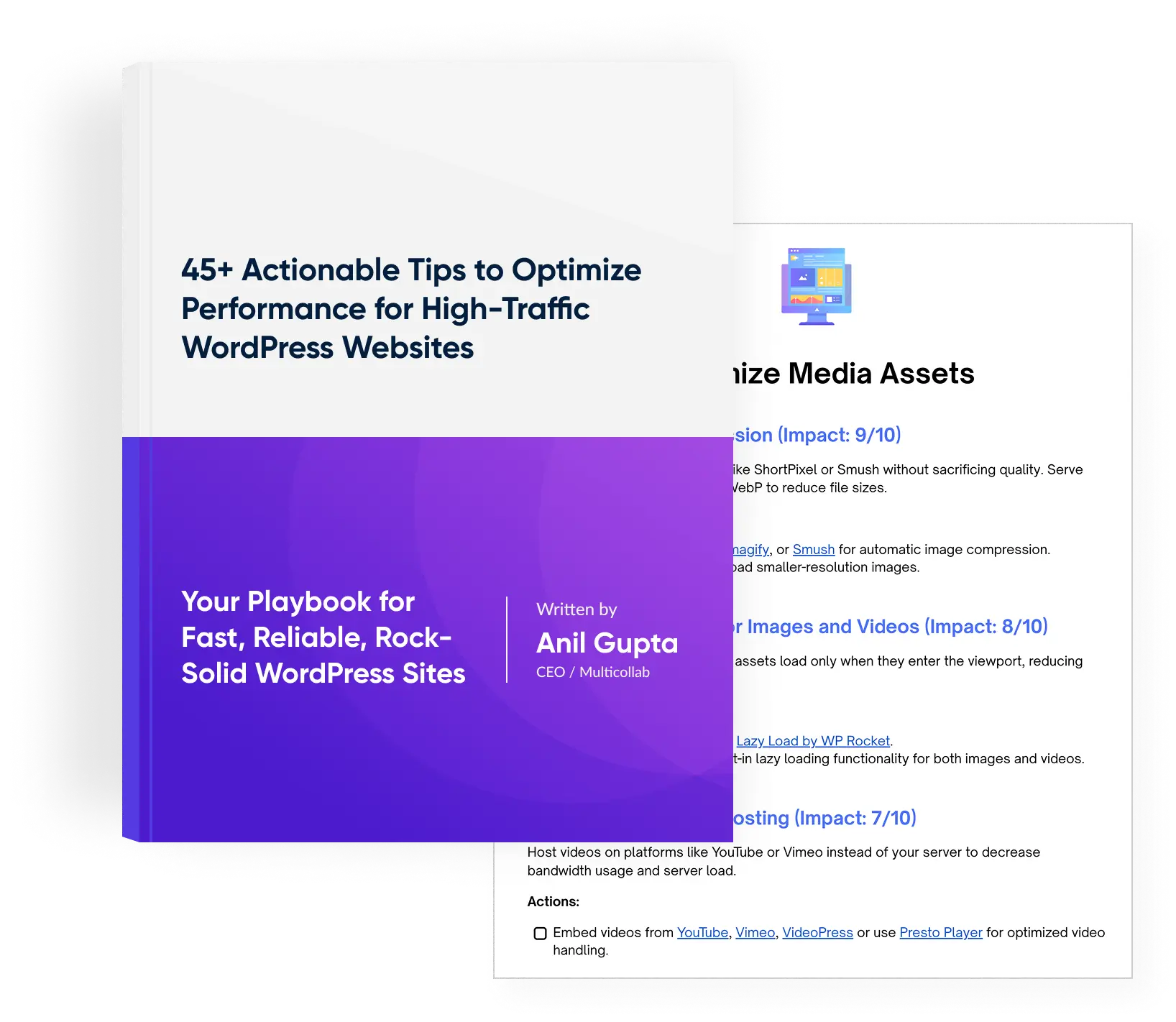
Download a Free Actionable Guide: 45+ Actionable Tips to Optimize Performance for High-Traffic WordPress Websites
Performance Optimization Techniques: Speed up your site with caching, image compression, and code minification.
Hosting and Scalability Suggestions: Learn to choose the right hosting solutions and scale efficiently.
Security and Protection Guidelines: Safeguard your site from DDoS attacks, malware, and performance threats.
Content and Plugin Management Tips: Optimize your database, plugins, and themes for peak performance.