
Table of Contents
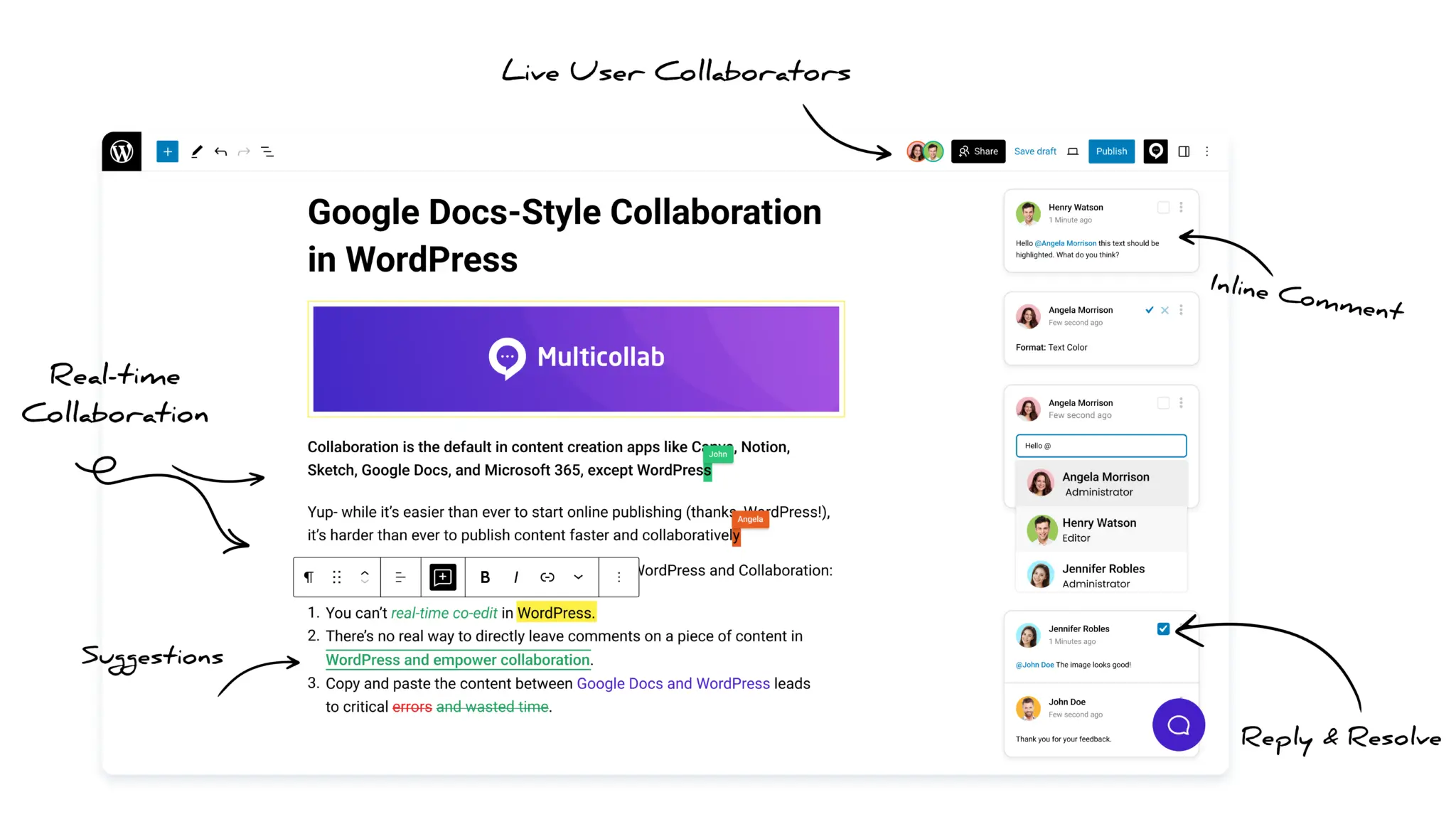
Multicollab is a popular WordPress plugin designed to bring Google Docs-style collaboration and editorial workflows directly into the WordPress Gutenberg block editor.
WordPress Slack notifications keep content reviews moving, because reviewers see new assignments where they already work. Without them, review requests and deadlines sit inside the WordPress dashboard. Editors chase reviewers by hand, and posts slip past their publish dates.
WordPress core has no built-in Slack alerts for editorial reviews. A manual Slack ping is enough when two people share a handful of posts. Once several reviewers and deadlines run at the same time, manual pings get missed.
Multicollab now covers that gap in its Content Workflows feature. When a post is assigned for review, misses its deadline, or goes live, your team sees it in a shared Slack channel in real time.
Quick Answer
- Connect Slack under Multicollab > Integrations, choose a channel, and turn on the Workflow Management toggles you want. You need the Multicollab PRO plan with the Workflow Management module enabled.
Which content workflow events does Multicollab send to Slack?
Multicollab posts a Slack message for three workflow events. Each message shows a short headline, a detail card with the stage and dates, and an action button.
- Review assigned: A workflow is submitted with reviewers, or new reviewers are added to a step.
- Deadline overdue: A daily check flags workflows that are past their end date and not completed. You get one message per overdue workflow, with every assigned reviewer listed.
- Published: A post or page goes live when someone completes the final workflow step.
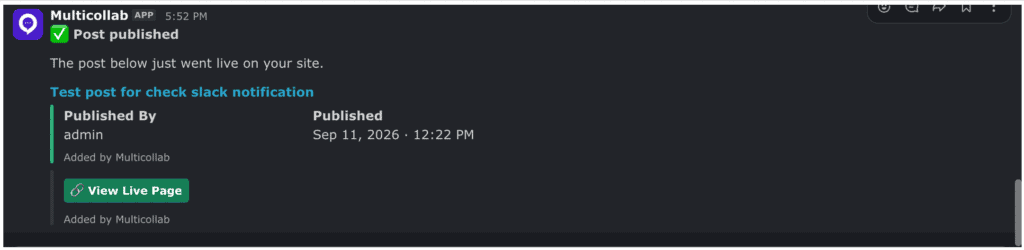
Each alert has its own toggle, so a channel only gets the updates your team needs.
What do you need before you set it up?
You need three things in place before Slack messages will send.
- Multicollab PRO plan: Workflow Slack notifications are a PRO feature. See the pricing page for plan details.
- Workflow Management module: It must be enabled under Multicollab > Modules.
- Working WP-Cron: Overdue alerts run on a daily scheduled job, so your site’s cron must be running.
How do you set up WordPress Slack notifications with Multicollab Content Workflows?
Setup takes five steps and a few minutes.
- Go to Multicollab > Modules and enable Workflow Management.
- Open Multicollab > Integrations > Slack and click Connect. Authorize Multicollab in Slack.
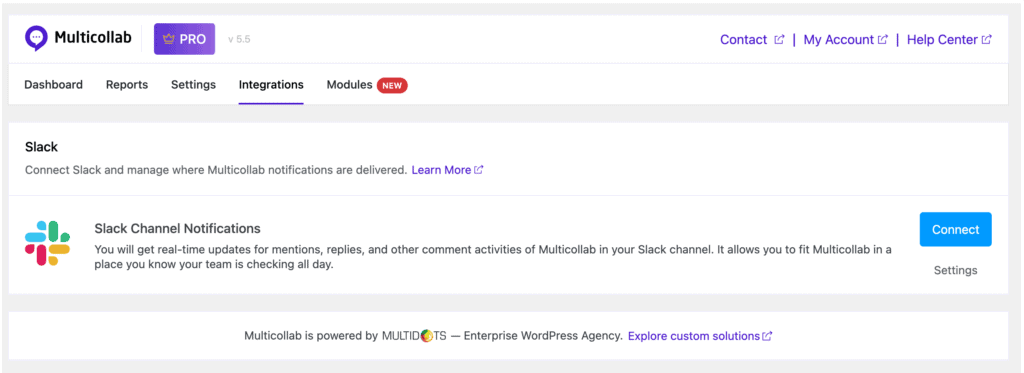
- Click Settings, pick your channel under Channel Name, and click Save.
- Open the Workflow Management tab inside Slack Settings.
- Turn on the toggles you want (assigned, overdue, published) and click Save.
To stop all Slack messages later, click Disconnect. This clears the stored connection and channel until you connect again.
Do Slack @mentions notify your reviewers?
Only when the names match. Multicollab writes each reviewer’s @mention as plain text, built from the part of their email before the @.

If rishi@company.com is also @rishi in Slack, Rishi gets pinged. If his Slack username is rishi.shah, the mention appears in the channel but sends no notification. Multicollab keeps it this way to avoid asking for extra Slack permissions.
You have two simple fixes:
- Match usernames: Ask your team to set Slack usernames that match their work email prefix.
- Follow the channel: Have reviewers watch the workflow channel instead of waiting for a ping.

Quick checklist
- Confirm your site runs the Multicollab PRO plan.
- Enable Workflow Management under Multicollab > Modules.
- Connect Slack and save a channel under Multicollab > Integrations > Slack.
- Turn on the workflow toggles your team needs.
- Check that WP-Cron runs, so overdue alerts send.
- Ask reviewers to match Slack usernames to their email prefix.
Which teams get the most from WordPress Slack notifications with Multicollab?
Teams that already plan their work in Slack benefit first. Editors track due dates without chasing people. Reviewers see new assignments the moment they land. Communications teams know what went live without checking WordPress.
Multicollab’s Slack notifications bring content workflow activity into the channel your team already uses. Assignments, overdue reviews, and publishes reach everyone in real time, with each alert switched on or off as you need.
Explore Content Workflows in Multicollab

Frequently asked questions
What are WordPress Slack notifications in Multicollab Content Workflows?
They are real-time Slack messages Multicollab sends for Content Workflow events: review assignments, overdue deadlines, and posts published through the final workflow step. Your team sees each update without opening WordPress.
Does WordPress have built-in Slack notifications for content reviews?
No. WordPress core has no Slack alerts for editorial reviews or deadlines. Multicollab adds them through its Content Workflows feature, so reviewers see requests in Slack.
What is Content Workflow in Multicollab?
Content Workflows is a Multicollab feature that moves posts through review stages your admin defines. Each stage has assigned reviewers and a deadline, and completing the final step publishes the post. It needs WordPress 6.9 or later.
Which Multicollab plan includes Slack workflow notifications?
The Multicollab PRO plan, with the Workflow Management module enabled. See the pricing page for current plan details.
Can I choose which workflow events go to Slack?
Yes. Each event has its own toggle under the Workflow Management tab in Slack Settings. Turn on any combination and click Save.
Why didn’t a reviewer get pinged by a Multicollab Slack mention?
Their Slack username probably doesn’t match their email prefix. Multicollab builds @mentions from the part of the email before the @, so rishi@company.com only pings a Slack user named @rishi.
Why are overdue workflow alerts not showing in Slack?
Check that WP-Cron is running, since a daily job sends overdue alerts. Also confirm the overdue toggle is on and a Slack channel is saved.
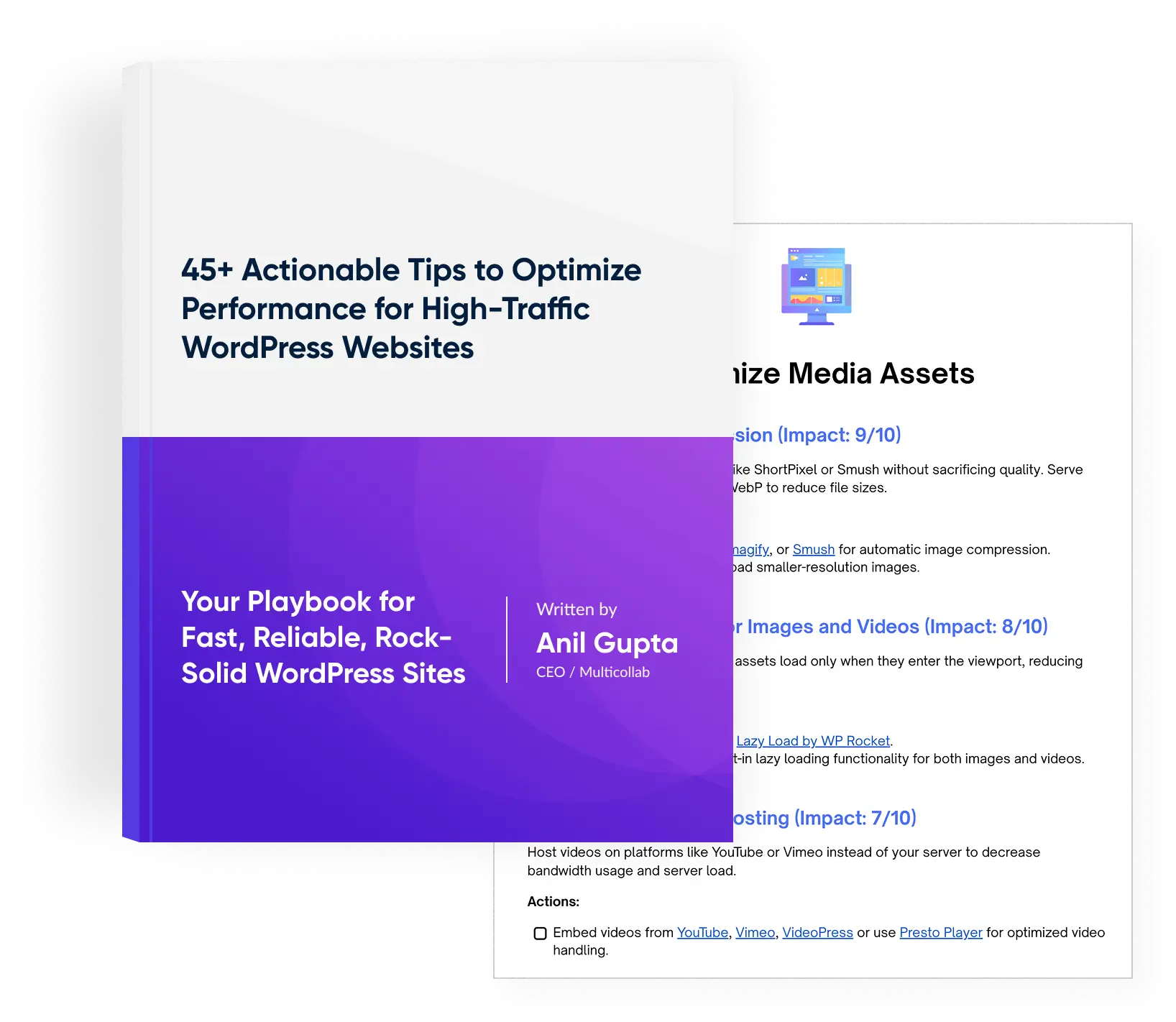
Download a Free Actionable Guide: 45+ Actionable Tips to Optimize Performance for High-Traffic WordPress Websites
Performance Optimization Techniques: Speed up your site with caching, image compression, and code minification.
Hosting and Scalability Suggestions: Learn to choose the right hosting solutions and scale efficiently.
Security and Protection Guidelines: Safeguard your site from DDoS attacks, malware, and performance threats.
Content and Plugin Management Tips: Optimize your database, plugins, and themes for peak performance.