

Table of Contents
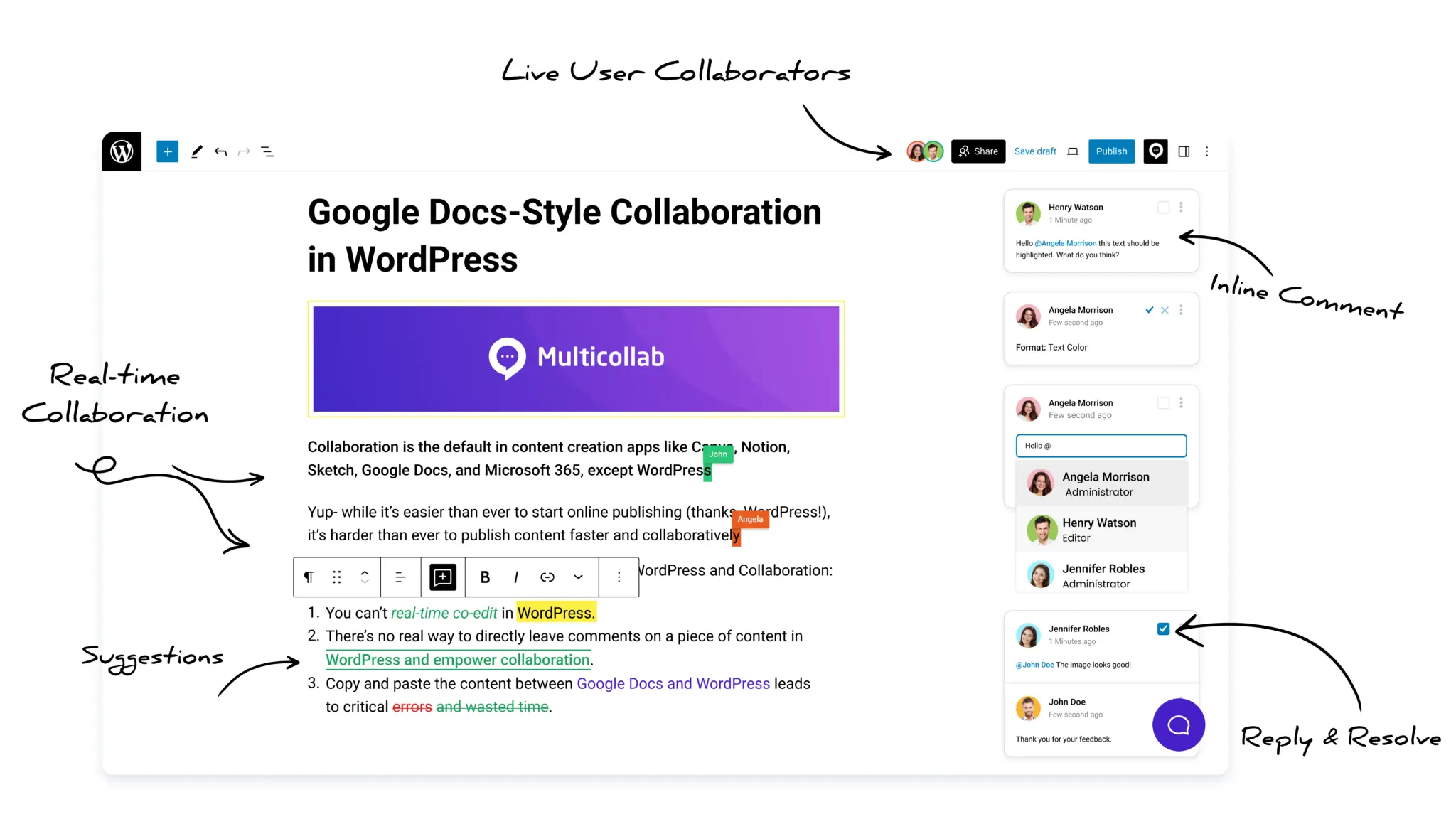
Multicollab is a popular WordPress plugin designed to bring Google Docs-style collaboration and editorial workflows directly into the WordPress Gutenberg block editor.
You can cut your content team tools from 9 to about 4 by moving drafting and review into WordPress. Your posts end up in WordPress anyway. Each extra tool before that point adds a copy-paste step, a new place for feedback, or another login.
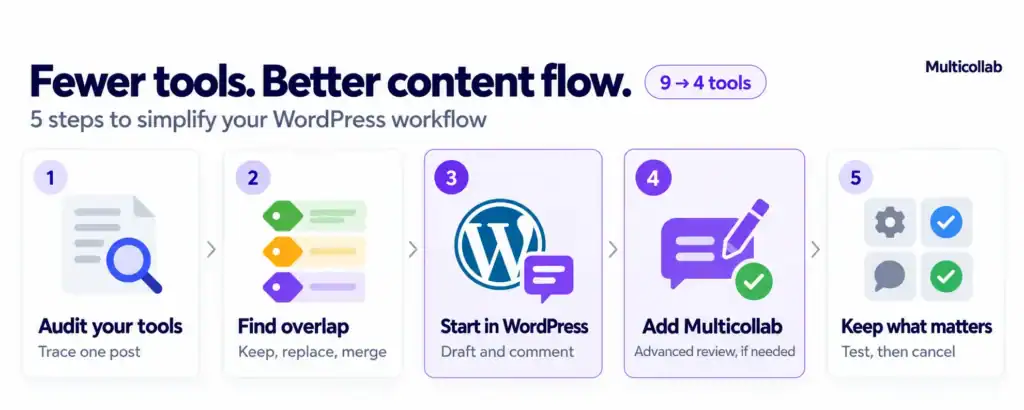
This guide shows you how to do it in 5 steps. It starts with the free WordPress method and covers when a plugin is worth adding.
Quick answer: To cut your content team tools, trace one post from brief to publish and list every tool it touched. Then move drafting into the WordPress block editor. Use WordPress Notes (version 6.9 and later) for basic comments. Add a plugin like Multicollab only if you need tracked changes, client review without a WordPress login, or approval stages. Keep your SEO, AI writing, and analytics tools.
Why do too many content team tools slow you down?
Every tool a draft passes through adds a handoff. Each handoff takes time and is a chance for feedback or edits to get lost.
That setup causes three problems:
- Lost feedback: The same request can sit in a Docs comment, a Slack message, and an email. The writer may miss one.
- Wrong versions: Late edits keep landing in the Google Doc after the post moves to WordPress. You can end up publishing a version nobody approved.
- No clear status: Nobody can see where a post is or who has it without checking several apps.
Switching apps also costs focus. A 2022 Harvard Business Review study of 137 office workers at 3 large companies found they switched between apps nearly 1,200 times a day. Refocusing after those switches took just under 4 hours a week (HBR).
The study didn’t measure content teams. Still, every app in your review process adds switches like these.
How do you cut your content team tools?
You cut your content team tools by finding the handoffs first, then moving drafting and review into WordPress. Follow these 5 steps in order.
Step 1: Trace one post from brief to publish
Pick a post your team published recently through a normal review. Write down every tool it touched, who used it, and what they did there.
- Include chat and email: Count Slack threads and email replies about the draft. They are part of your review process.
- Note the cost: List the monthly cost and number of users for each tool.
- Repeat for each content type: Blog posts and landing pages often use different tools.
Step 2: Mark every handoff
A handoff is any point where the draft or its feedback moves from one tool to another. Mark each one on your list.
Look hardest at the copy-paste points, such as moving a Google Doc into WordPress. Then label each tool:
- Keep: It does a job no other tool does, like keyword research.
- Replace: It exists only to move the draft or feedback, like Docs comments and review emails.
- Merge: It overlaps another tool, like a spreadsheet calendar next to a project board.
Avoid adding a new tool to manage the others. That adds one more place to check.
Step 3: Move drafting and basic review into WordPress
Draft new posts directly in the WordPress block editor. For comments, use Notes, a free feature built into WordPress since version 6.9 (Make WordPress Core). Notes lets logged-in users comment on a specific block.
To add a Note:
- Select the block: Click the paragraph, image, or heading you want to comment on.
- Open the menu: Go to Block toolbar > Options > Add note.
- Write and save: Type your feedback. WordPress emails the post author.
- Close the loop: Reply in the thread, then resolve it once the change is made.
Notes is enough when:
- Every reviewer has a WordPress login. Notes works only for logged-in users.
- Reviewers only comment. The writer makes every edit.
- Review is short. One editor, one round, then publish.
Notes has limits. Reviewers can’t suggest exact edits for the writer to accept or reject. People without a WordPress login can’t use it.
Notes also has no review stages or pre-publish checks. If your team needs any of these, go to step 4.
Step 4: Add Multicollab for what Notes can’t do
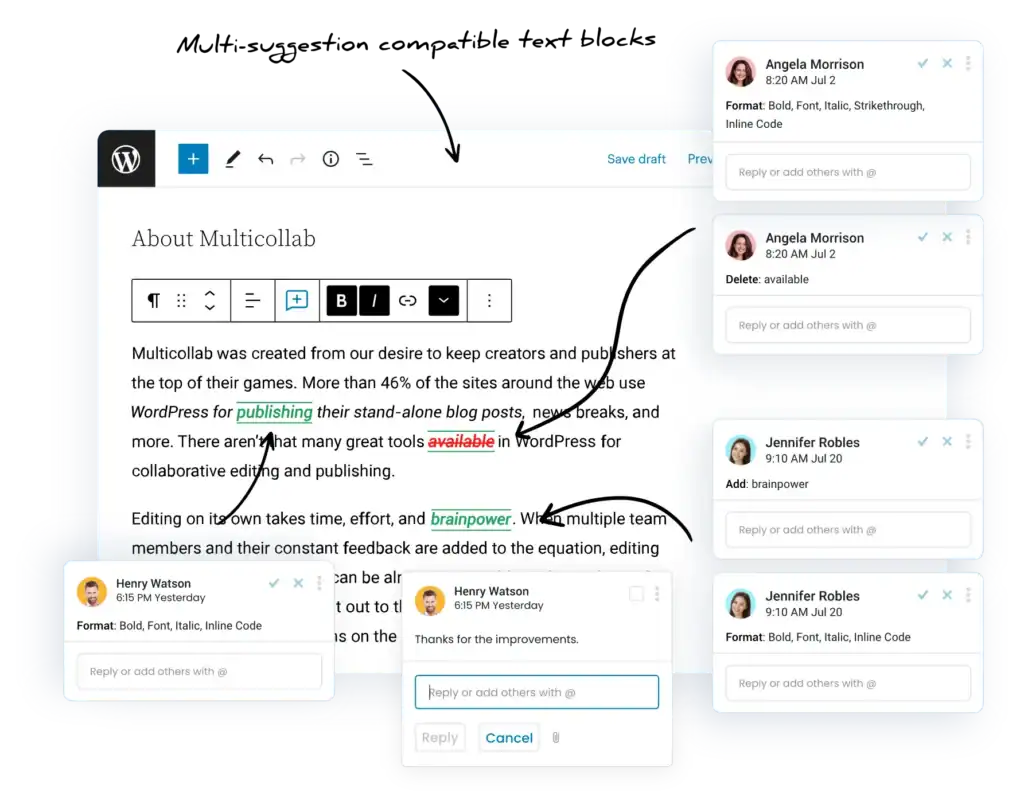
Multicollab adds the review features Notes lacks, inside the same block editor. Each feature replaces a tool from your list.
| Tool you can drop | Multicollab feature that replaces it |
| Google Docs comments | Inline Commenting: comment on text or media, @mention a teammate, attach a file |
| Tracked changes in Docs or Word | Suggestion Mode: color-coded edits the writer accepts or rejects, one by one or in bulk |
| Review emails with clients | Guest Collaboration: clients review through an email link, with no WordPress login |
| Project board for post status | Content Workflows: set the stages a post moves through and who approves each one |
| Pre-publish checklist doc | Editorial Checklist: set tasks per post type and warn before publishing if any are open |
| Slack and email reminders | Notifications: email and Slack alerts that link back to the draft |
Multicollab is built by Multidots, a WordPress VIP Gold agency. Comments and suggestions stay on your own WordPress site.
Before you choose it, know these limits:
- One mode per post: Suggestion Mode and real-time co-editing can’t run at the same time.
- 5 editors at once: Real-time co-editing supports up to 5 users on a post.
- Guest roles: Guests can view or comment. They can edit only when real-time co-editing is on.
- Your roles stay the same: You set permissions for your existing WordPress roles. Multicollab doesn’t add new ones.
- WordPress version: Content Workflows needs WordPress 6.9 or later.
- Paid plugin: See the Multicollab pricing page for current plans.
Step 5: Keep the specialist tools and cancel the rest
Keep any tool that gives your team information WordPress can’t. Cancel the tools you labeled Replace once the new process has run for a few posts.
| Job | Before (9 tools) | After (about 4 tools) |
| Drafting | Google Docs | WordPress block editor |
| Comments | Docs comments, Slack, email | Notes or Multicollab in WordPress |
| Line edits | Docs suggestions | Multicollab Suggestion Mode |
| Status | Trello or a spreadsheet | Multicollab Content Workflows |
| Pre-publish checks | Checklist doc | Multicollab Editorial Checklist |
| Keyword research | SEO tool | SEO tool (kept) |
| Drafting help | 2 AI tools | 1 AI writing tool (kept) |
| Results | Analytics | Analytics (kept) |
Teams that also plan email, social, and video may keep a shared project board. Link each card to the WordPress draft.
What mistakes should you avoid when cutting content team tools?
The biggest mistake is cancelling a tool before its replacement works. Run the new process on a few posts first.
- Cancelling too early: Keep the old tool for one or two review cycles. Cancel it once nobody has opened it.
- Moving everything at once: Start with one content type, like blog posts. Add landing pages and other types after.
- Forcing logins on clients: Native Notes needs a WordPress account for every reviewer. Use guest links instead of creating accounts for outside reviewers.
- Skipping the team brief: Tell writers and editors where feedback now goes. Old habits send comments back to Slack.
- Cutting useful tools: SEO research, AI writing, and analytics tools add information. Keep them.
Quick checklist
- List every tool one post touched, with cost and users
- Mark each handoff and label tools Keep, Replace, or Merge
- Draft the next post in the block editor
- Run one review round with WordPress Notes
- Add Multicollab only for tracked changes, guest review, or approval stages
- Tell the team where feedback goes now
- Cancel replaced tools and remove old logins
Your posts already end in WordPress. When drafting and review happen there too, you can drop the tools that only carry drafts and feedback between apps.
See how Multicollab brings comments, suggestions, and approvals into WordPress on the Multicollab pricing page.
Frequently Asked Questions
How many tools does a content team need?
About 4 core tools: WordPress for drafting, review, and publishing, plus an SEO tool, an AI writing tool, and analytics. If two tools hold the same draft or feedback, drop one.
Can WordPress replace Google Docs for content review?
Yes, for review. Draft in the block editor and use free WordPress Notes for comments, then add Multicollab if you need tracked changes or client review without a login.
Do you need to remove AI writing tools to cut your stack?
No. AI writing, SEO, and analytics tools give your team information WordPress can’t, so keep them and cut only the tools that move drafts and feedback between apps.
How can clients review a WordPress draft without an account?
Use Multicollab’s Guest Collaboration. Clients open the draft through a time-limited email link with no account, and can view or comment by default.
Can several people edit a WordPress post at the same time?
Not with WordPress core today. Multicollab adds real-time co-editing for up to 5 users, though it can’t run at the same time as Suggestion Mode.
Does Multicollab work with your existing WordPress user roles?
Yes. Multicollab sets permissions for the roles you already have, like Editor and Author, and doesn’t create new ones.
Download a Free Actionable Guide: 45+ Actionable Tips to Optimize Performance for High-Traffic WordPress Websites
Performance Optimization Techniques: Speed up your site with caching, image compression, and code minification.
Hosting and Scalability Suggestions: Learn to choose the right hosting solutions and scale efficiently.
Security and Protection Guidelines: Safeguard your site from DDoS attacks, malware, and performance threats.
Content and Plugin Management Tips: Optimize your database, plugins, and themes for peak performance.