
Table of Contents
Multicollab is a popular WordPress plugin designed to bring Google Docs-style collaboration and editorial workflows directly into the WordPress Gutenberg block editor.
Key Takeaways
- Google Docs to WordPress migration is crucial because the former slows teams down when publishing to WordPress because formatting, comments, and structure don’t transfer cleanly.
- Multicollab brings inline comments, suggestions, and real-time collaboration directly into the block editor, keeping everything in one place.
- Drafting inside WordPress removes the need to rebuild posts after pasting from Google Docs.
- Centralizing feedback in WordPress creates a single source of truth and speeds up review cycles.
- A focused 7-day plan is enough to help teams shift their drafting and review process fully into WordPress without disrupting their workflow.
Most content teams draft in Google Docs and publish in WordPress because it feels familiar. Writers create early versions in Docs, editors leave comments, and the “final draft” eventually gets copied into WordPress for layout, cleanup, and SEO. This works well at the start, but the workflow breaks as content volume increases.
The moment a Google Doc is pasted into WordPress, formatting changes, images disappear, spacing shifts, and hidden HTML creates unpredictable layout issues. All the comments, suggestions, and decisions stay in Google Docs, leaving editors to rebuild structure and interpret feedback without full context.
This happens because the writing tool and the publishing tool aren’t connected. Google Docs can’t understand blocks, templates, patterns, or how content needs to appear on your site. Teams end up doing the same work twice, and review cycles become slower than they should be.
Multicollab fixes this by bringing Google Docs–style collaboration directly into the WordPress block editor. Your writers, editors, and reviewers can draft, comment, suggest changes, and approve content in one place. This guide shows how to help your team make the full shift from Google Docs to WordPress in 7 days.

Why Google Docs is great for writing but not for WordPress publishing
Google Docs is a comfortable place to write. It’s fast, familiar, and perfect for early drafts where ideas change quickly. Writers like the freedom, and editors enjoy the simple commenting and suggestion tools.
But Google Docs doesn’t understand how content needs to work inside WordPress. When a post is copied into the block editor, headings shift, spacing breaks, and images don’t transfer cleanly. Writers often rebuild entire sections just to make the layout match the intended structure.
Docs also can’t see the parts of your content that matter for publishing. It doesn’t know your block patterns, templates, SEO fields, internal links, categories, or media library. All the formatting and structure that makes a WordPress post complete must be added manually after the paste.
The result is a workflow split between two disconnected tools. All the writing and review happens in Docs, but all the publishing work happens in WordPress. This forces teams to redo work, chase feedback, and fix formatting—slowing down every article.
What Multicollab actually brings into WordPress
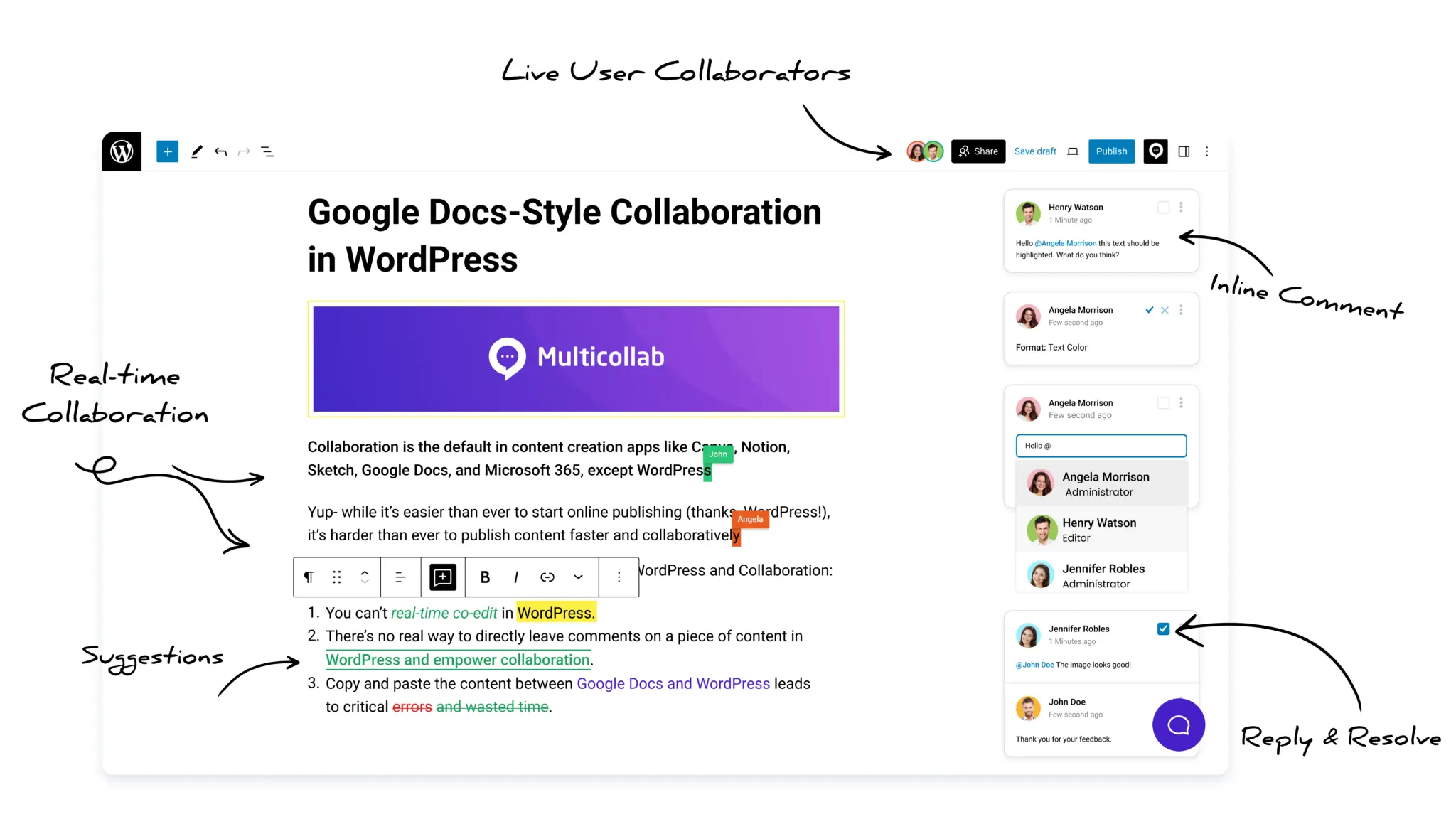
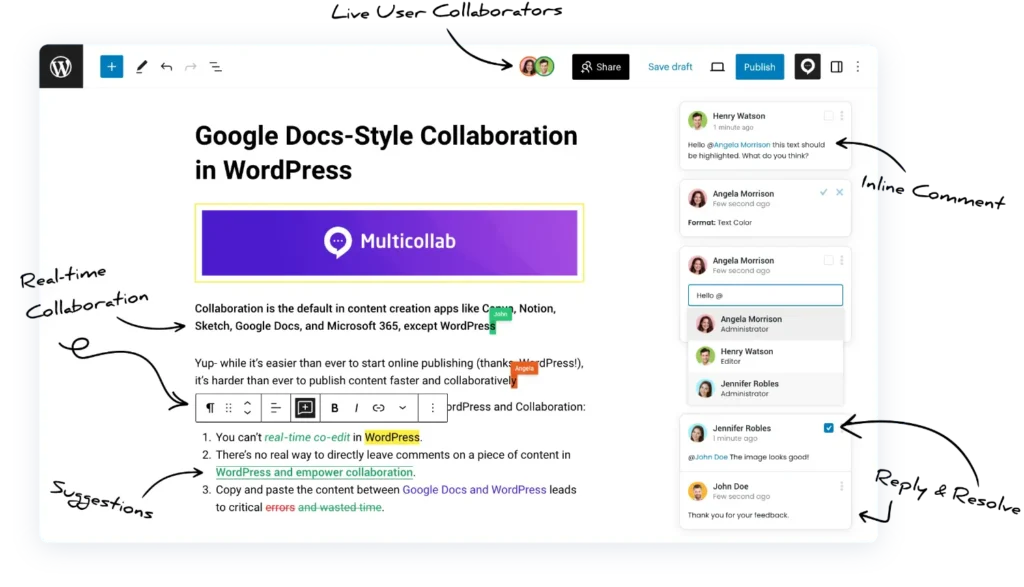
Multicollab brings the collaboration tools your team uses in Google Docs directly into the WordPress block editor. This lets writers, editors, and stakeholders work together without switching apps or losing context.
Inline comments
- Add comments to specific words, sentences, or blocks.
- Reply, resolve threads, and keep discussions organized.
- (Pro) Comment on images, embeds, and custom blocks.
Suggestion mode
- Editors propose changes without editing the original text.
- Writers accept or reject suggestions instantly.
- Keeps revision history clean and easy to follow.
Real-time collaboration
- Multiple users can work on the same post together.
- Everyone sees updates as they happen.
- Limited to one editor per block to prevent conflicts.
Notifications
- Email alerts for new comments, replies, and mentions.
- (Pro) Slack notifications bring reviewers back quickly.
- Ensures no feedback is missed during review cycles.
Permissions
- Control who can comment, suggest, or resolve edits.
- Keep roles clear across writers, editors, and managers.
- Prevent accidental changes during review.
Content Workflows
- Build custom stages like Draft, Review, Approval, and Publish.
- Set role-based permissions so only the right roles move a post forward.
- Every stage stays documented and traceable inside WordPress.
Create Version (for published posts)
- Update a live post safely by creating a separate editable version.
- Send changes through review and approval before they go live.
- Merge only once approved, so published content is never accidentally overwritten.
With these features, drafting, editing, feedback, and approvals all happen inside WordPress—right where the content will be published.
What Multicollab does not replace
Multicollab improves collaboration inside WordPress, but it isn’t a full publishing or migration tool. Knowing these limits helps teams adopt the workflow smoothly without expecting features it doesn’t provide.
It does not import Google Docs automatically
- There is no one-click Google Docs → WordPress converter.
- You still need to paste content manually.
- Images, tables, and special formatting must be rebuilt in blocks.
It does not fix formatting from Docs
- Heading styles, spacing, and lists may still break after paste.
- Hidden HTML from Google Docs is not cleaned by Multicollab.
- Layout blocks need to be recreated inside Gutenberg.
It does not replace SEO tools
- Metadata still comes from plugins like Yoast or Rank Math.
- Schema, descriptions, and internal links remain separate tasks.
- SEO workflows stay exactly as they are in WordPress.
It handles editorial workflows, but not scheduling
- Multicollab now includes Content Workflows, so you can build custom stages like Draft → Review → Approval → Publish with role-based permissions, all inside WordPress.
- It does not replace editorial calendars or post-scheduling tools.
- Pair it with your preferred scheduling plugin if you need calendar or timed-publishing features.
It does not override WordPress roles
- Core capabilities for authors, editors, and admins stay the same.
- Multicollab adds collaboration permissions on top of your existing roles.
- It won’t affect publishing rights or global site access.
Understanding these boundaries helps teams focus on what Multicollab does best: keeping all comments, suggestions, collaboration, and now editorial workflow inside the block editor.
The 7-day Google Docs to WordPress migration plan

You don’t need a big, disruptive process change to move your team from Google Docs to WordPress. A simple 7-day plan helps everyone shift gradually, without slowing down your publishing schedule. Each day focuses on one part of the workflow so the transition feels natural.
Day 1 — Audit your current workflow
Identify where drafts start, how reviews happen, and where delays occur. Note common issues like formatting breaks, missed comments, or multiple “final” versions.
Day 2 — Set up Multicollab
Install the plugin, enable commenting and Suggestion Mode, and assign permissions. Make sure every writer and editor has access to the same WordPress environment.
Day 3 — Move drafting into WordPress
Stop creating new articles in Google Docs. Writers begin drafts directly inside Gutenberg and use inline comments for questions or placeholders.
Day 4 — Shift feedback into WordPress
Editors use Suggestion Mode for revisions. Reviewers add inline comments instead of leaving feedback in Docs or email threads.
Day 5 — Bring active Google Docs drafts into WordPress
Move only in-progress articles. Fix formatting, add images to the Media Library, and recreate important comments using inline threads.
Day 6 — Add notifications and refine habits
Turn on email or Slack alerts so reviewers don’t miss updates. Set simple rules on when to comment, when to suggest, and when to resolve.
Day 7 — Review results and expand the workflow
Gather feedback from the pilot group, note what improved, and decide how to roll the new workflow out to more writers and editors.
This plan helps your team learn the new workflow step by step, without needing to change everything at once.
How your new WordPress-first workflow works

Once your team starts drafting and reviewing inside WordPress, the entire process becomes simpler and more connected. Everyone works on the same post, in the same place, without switching between tools or losing context.
- Writers begin by creating a new post in the block editor. They add headings, placeholder text, notes, and early ideas directly in WordPress. When they need input, they highlight a sentence or block and leave an inline comment instead of jotting notes in Google Docs.
- Editors review the draft using Suggestion Mode. They propose edits without changing the original text, and writers can accept or reject updates with a click. Inline comments keep discussions focused because every message stays attached to the exact section it refers to.
- Stakeholders add high-level feedback the same way. Instead of reviewing in email or Docs, they leave comments inside the post, where the team can respond, resolve, or reference them during revisions.
- All conversations live in the comments sidebar, so everyone can see what has been addressed and what still needs attention. Notifications make sure editors and reviewers don’t miss updates or mentions.
When the content is approved, there’s no need to rebuild anything. The structure, formatting, images, links, and layout are already correct because the draft never left WordPress. Publishing becomes a quick, predictable final step instead of a reconstruction process.
Before and after: What changes when you switch to WordPress
Switching from Google Docs to WordPress isn’t just a tool change—it reshapes how your team collaborates. The workflow becomes clearer, faster, and more connected because everything stays inside the place where your content is actually published.
| Before | After |
| Drafts and decisions are scattered: Writers draft in Docs, editors review in Docs, and stakeholders leave feedback through email or chat. By the time a post reaches WordPress, key decisions are separated from the version that gets published. | Everything happens in one place: With Multicollab, drafts, comments, suggestions, and approvals all happen inside the block editor. Everyone sees the same version, and feedback stays attached to the exact part of the content it relates to. |
| Formatting breaks after pasting into WordPress: Headings change, lists break, spacing shifts, and images disappear. Writers spend time fixing layout issues instead of improving content. | What you write is what you publish: Drafting inside WordPress keeps your structure accurate from the start. Blocks, layout, links, and images stay intact, so the team avoids rebuilding the post after review. |
| Review cycles move slowly: Feedback in Docs, approvals in email, and revisions in WordPress create a fragmented process. Each handoff adds delays. | Collaboration becomes instant: Editors use Suggestion Mode. Stakeholders leave inline comments. Writers get notifications and reply inside the editor. Reviews become faster because no one needs to switch tools. |
| Writers rebuild content twice: After finalizing a draft in Docs, the entire layout must be recreated in WordPress. | Nothing gets recreated: Since the entire workflow stays inside WordPress, the final post is already formatted and ready for SEO and publishing. |
Why this workflow is better than Google Docs
Moving your drafting and review process into WordPress removes the friction that comes from using two disconnected tools. Writers no longer need to rebuild posts after pasting from Google Docs, and editors no longer lose context when reviewing feedback.
The content stays clean because it’s structured in blocks from the beginning. This means headings, spacing, images, lists, and layout work exactly as they should, without last-minute formatting fixes. Publishing becomes more predictable because the post is already in the right format.
Collaboration also becomes clearer. Inline comments keep discussions tied to specific sections of the post, and Suggestion Mode allows editors to make changes without overwriting the original text. Since feedback doesn’t move across tools, nothing gets lost.
Here’s why the WordPress-first workflow is better for teams:
- No formatting issues when moving content into WordPress
- No version confusion across multiple Docs or drafts
- Faster reviews because comments and suggestions stay in context
- Cleaner structure because blocks are used from the start
- Smoother publishing since nothing needs to be rebuilt before going live
By shifting collaboration into WordPress, your team works faster, reduces errors, and produces higher-quality content with fewer steps.
Common mistakes teams make (and how to avoid them)
Teams moving from Google Docs to WordPress often expect the workflow to change instantly. In reality, the switch becomes smoother when everyone understands what to avoid. Here are the most common mistakes and how to prevent them.
Mistake 1: Migrating every Google Doc at once
Some teams try to move their entire history of drafts on day one. This creates clutter and slows adoption.
Fix: Only migrate active, in-progress drafts. Leave older Docs as they are.
Mistake 2: Editing WordPress content like a text editor
Writers sometimes ignore block structure and format text manually. This leads to inconsistent layouts.
Fix: Use proper headings, paragraphs, lists, and patterns from the beginning.
Mistake 3: Mixing comments between Docs and WordPress
If feedback continues in Docs, the new workflow never becomes unified.
Fix: Once Multicollab is active, keep all comments and suggestions inside WordPress.
Mistake 4: Not defining simple collaboration rules
Without clear guidance, reviewers may use comments, suggestions, or resolves inconsistently.
Fix: Create simple rules: comment for questions, suggest for edits, resolve when complete.
Mistake 5: Not onboarding reviewers properly
Stakeholders often need help understanding where comments live in the block editor.
Fix: Give a short walkthrough so reviewers know how to comment, reply, and approve.
Avoiding these mistakes makes the transition smoother and helps your team adopt WordPress collaboration naturally.
The 7-day Google Docs to WordPress migration implementation checklist
Use this checklist to guide your team through a smooth, structured transition from Google Docs to WordPress. Each step reflects the essential actions needed to build a fully WordPress-native collaboration workflow.
✓ Day 1 — Map your current workflow
List where drafts start, how reviews happen, who approves content, and where time is lost.
✓ Day 2 — Install Multicollab and set permissions
Enable comments and Suggestion Mode, assign user roles, and confirm everyone can access the block editor.
✓ Day 3 — Draft new posts directly in WordPress
Writers stop using Google Docs for new articles and begin working inside Gutenberg.
✓ Day 4 — Move editing and feedback into WordPress
Editors use Suggestion Mode; reviewers leave inline comments instead of emailing or marking up Docs.
✓ Day 5 — Migrate only active Google Docs drafts
Copy in-progress posts, clean up formatting, upload images, and re-add important comments.
✓ Day 6 — Turn on notifications and refine habits
Enable email or Slack alerts, and set simple rules for commenting, suggesting, and resolving.
✓ Day 7 — Review results and expand to more users
Gather feedback from the pilot group, refine your workflow, and roll out the process across the full team.
This checklist gives your team a clear, predictable path to adopting WordPress-based collaboration—without overwhelming them.
Conclusion
Shifting your workflow from Google Docs to WordPress removes the friction that slows content teams down. When drafting, reviewing, and publishing all happen in the same place, the entire process becomes smoother and easier to manage.
Multicollab brings comments, suggestions, and real-time collaboration directly into the block editor. This keeps everyone on the same version of the post and eliminates the formatting and version issues that come from working across tools.
With a simple 7-day plan, your team can adopt this workflow quickly. The result is faster reviews, cleaner publishing, and a more organized content process. Start drafting your next post directly in WordPress to feel the difference.
Frequently asked questions:
Why should content teams move from Google Docs to WordPress?
Google Docs creates formatting issues, version confusion, and disconnected review cycles. WordPress keeps drafting, comments, suggestions, and publishing in one place.
How does Multicollab replace Google Docs collaboration features?
Multicollab adds inline comments, replies, suggestion mode, and real-time editing directly inside the WordPress block editor, so teams can collaborate without switching tools.
What problems occur when copying Google Docs content into WordPress?
Headings change, spacing breaks, images don’t transfer, and hidden HTML disrupts layout. This forces writers to rebuild the post before publishing.
Can editors use Suggestion Mode inside WordPress?
Yes. Multicollab’s Suggestion Mode lets editors propose changes without modifying the original text, and writers can accept or reject revisions.
How long does it take to move from Google Docs to WordPress?
Most teams transition smoothly in about a week using a simple, structured 7-day plan that shifts drafting and review into WordPress gradually.
Does Multicollab support real-time co-editing?
Yes. Real-time editing is supported when configured properly, allowing multiple users to work on a post at once as long as they don’t edit the same block.
What should teams do with existing drafts stored in Google Docs?
Only migrate active, in-progress drafts. Copy them into WordPress, clean up formatting, upload images, and recreate important comments using inline threads.
Is Google Docs still needed after switching to WordPress?
You can still use Docs for notes or non-publishable content, but all blog drafting, reviewing, and approving becomes faster and more accurate inside WordPress.
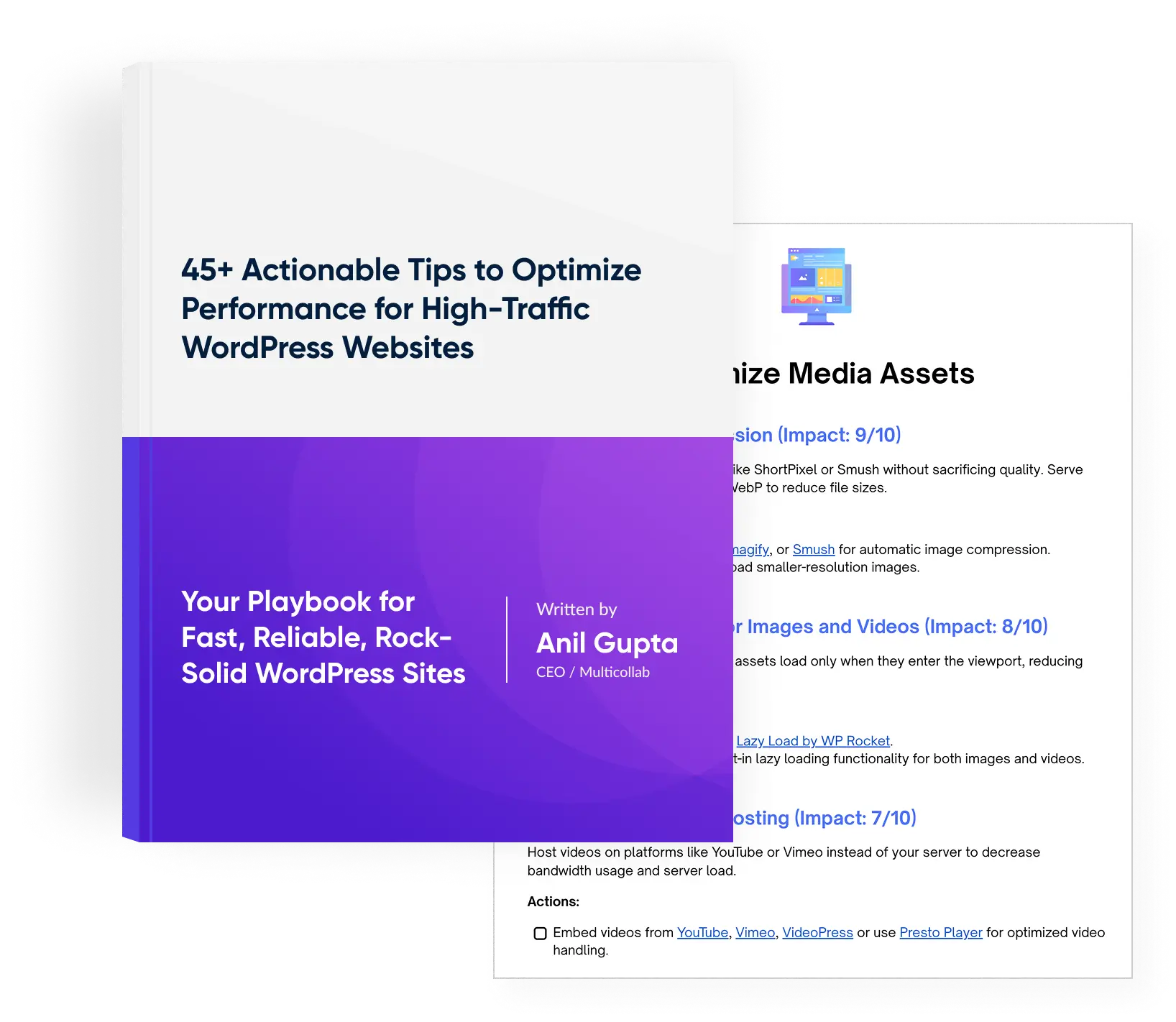
Download a Free Actionable Guide: 45+ Actionable Tips to Optimize Performance for High-Traffic WordPress Websites
Performance Optimization Techniques: Speed up your site with caching, image compression, and code minification.
Hosting and Scalability Suggestions: Learn to choose the right hosting solutions and scale efficiently.
Security and Protection Guidelines: Safeguard your site from DDoS attacks, malware, and performance threats.
Content and Plugin Management Tips: Optimize your database, plugins, and themes for peak performance.