
Table of Contents
Multicollab is a WordPress plugin that removes Google Docs to WordPress formatting issues by bringing inline comments, suggestion mode, and real-time editing into the WordPress editor.
Key Takeaways
- Google Docs and WordPress store content differently, and every transfer between them breaks formatting in predictable ways.
- The 10 formatting problems in this guide, including hidden code, missing images, and broken tables, happen to every editorial team using this workflow.
- Current fixes like Notepad stripping, Mammoth, and Wordable reduce cleanup time but do not remove the transfer problem.
- Editorial feedback and revision history created in Google Docs disappear when content moves to WordPress.
- Writing, editing, and approving content directly inside WordPress eliminates all transfer-related formatting issues.
- A WordPress collaboration plugin like Multicollab adds the Google Docs features editorial teams rely on, including inline comments, suggestion mode, and guest collaboration, directly into WordPress.
Most editorial teams write content in Google Docs and publish it in WordPress. The two tools do not share a formatting system, and every time you move content between them, something breaks. Images disappear, HTML tags appear in the editor, headings collapse, and tables stop working on mobile.
This guide documents every formatting issue that occurs when you publish Google Docs to WordPress, explains why each one happens, and shows what fixes are available.
Why moving content from Google Docs to WordPress create formatting issues
Google Docs and WordPress store content in completely different ways. Google Docs wraps every line of text in its own styling code that controls fonts, spacing, and layout. WordPress breaks content into separate blocks, where each heading, paragraph, and image sits in its own container. When you paste a Google Doc into WordPress, these two systems clash.
The clash shows up as:
- Broken formatting
- Headings lose their levels
- Images go missing
- Hidden code appears in the editor
- Lists lose their structure
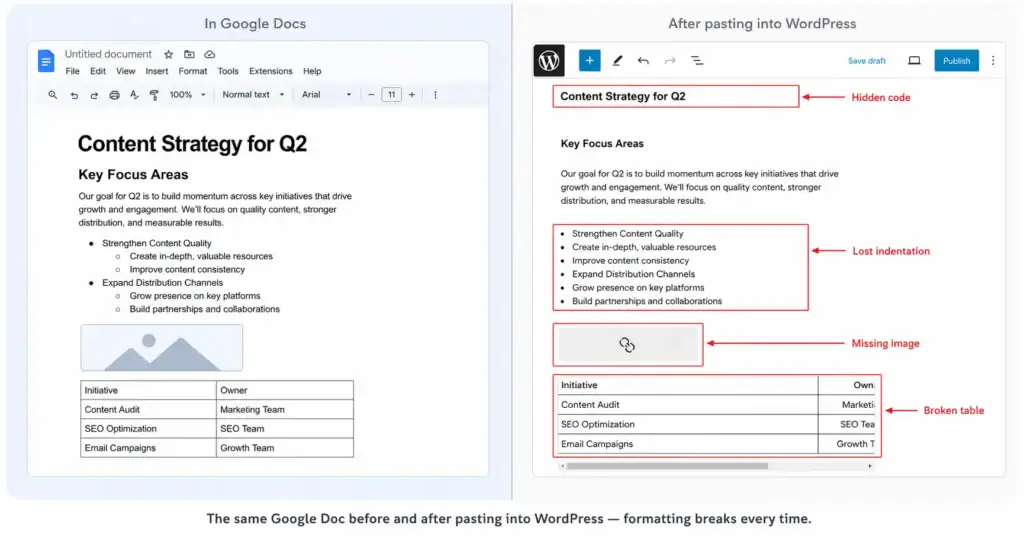
The more elements your document has, the more problems appear after pasting.
This happens every time you move content between the two tools. It is not a one-off error or a settings issue you can fix once. It is a repeated problem that every editorial team hits on every post they publish this way.
The next section covers each problem individually so you know exactly what to expect and why it happens.
10 Google Docs to WordPress formatting problems every editorial team faces
These formatting problems occur when you move content from Google Docs to WordPress. Each problem includes what it looks like, why it happens, and what the standard fix involves.
1. Hidden code appears in the WordPress editor
When you paste content from Google Docs into WordPress, extra code comes with it. Google Docs adds invisible formatting instructions to every line of text, and WordPress does not know what to do with them. This code does not change how the post looks to readers, but it makes your pages load slower and can cause text to display differently than the rest of your site.
To remove it, you either delete each piece of code manually inside the WordPress editor, or you paste the content into Notepad first to strip everything out. The Notepad method removes the unwanted code but also removes your headings, links, bold text, and italics, so you have to reformat the entire post from scratch inside WordPress.
2. Extra spaces and line breaks appear after pasting
Google Docs and WordPress handle paragraph spacing differently. A document that looks neatly spaced in Google Docs will show double gaps between paragraphs when you paste it into WordPress. Extra blank lines also appear in places where none existed in the original document.
You fix this by going through the post and deleting each extra space manually. On a long post, this takes 10 to 15 minutes, and breaks that only appear on mobile screens are easy to miss entirely.
3. Images disappear or show as broken
Google Docs does not save images as separate files. It stores them inside the document itself, linked to Google’s own servers. When you paste the document into WordPress, the images either disappear completely or show up as broken icons because WordPress cannot access the Google-hosted version.
The fix is to download each image one by one from the Google Doc, upload it to WordPress, and insert it into the post manually with alt text added. For a post with 8 to 10 images, this step alone adds 20 to 30 minutes to the publishing process.
4. Tables stop working on smaller screens
Google Docs creates tables at a fixed width. WordPress adjusts its layout to fit different screen sizes, including phones and tablets. When a fixed-width table from Google Docs lands in WordPress, it overflows the page on smaller screens and becomes impossible to read.
The only way to fix this is to delete the pasted table and rebuild it from scratch inside the WordPress editor, re-entering all the data by hand.
5. Nested lists lose their structure
Google Docs lets you create lists with multiple levels of indentation, where sub-points sit underneath main points. When you paste a nested list into WordPress, the indentation disappears and all items land at the same level, or sub-points turn into separate paragraphs with no list formatting at all.
You have to reformat each sub-point manually inside WordPress. This is one of the easiest problems to miss before a post goes live.
6. Links break or point to the wrong page
Links copy across from Google Docs to WordPress, but they do not always transfer correctly. Some links end up pointing to the wrong page. Others shift position within the sentence so the wrong words become clickable. A broken link creates a poor experience for readers and makes it harder for search engines to crawl your site properly.
You need to check every link in the post manually before publishing, which adds time and creates the risk of missing one.
7. Headings lose their levels after pasting
Google Docs and WordPress handle headings differently. When you paste a document into WordPress, H2 headings sometimes become bold paragraph text with no heading applied at all. Other times, multiple heading levels all paste as H1. This matters because heading levels tell both readers and search engines how your content is organised.
You fix this by clicking each heading individually and reassigning the correct level inside the WordPress editor.
8. Text appears in the wrong font or size
Google Docs applies its own font and size settings to every document. When you paste into WordPress, those settings come with the text and override the fonts your website uses. The result is a post where some paragraphs look different from the rest of the site.
To fix it, you select all the text and clear the formatting, which removes the unwanted font settings. This also removes all bold text, italics, and links, so you have to go through the entire post and reapply each one manually.
9. SEO fields are empty after importing content
WordPress SEO plugins like Yoast and RankMath store information separately from the post content itself. When you move a post from Google Docs to WordPress, the SEO title, meta description, focus keyword, and URL slug do not transfer. You fill these in manually after importing the content. When teams work under tight deadlines, this step gets skipped, and posts go live with no SEO information applied at all.
10. Editorial feedback and comments are lost
Every comment, suggestion, and revision note that editors leave in a Google Doc exists only inside that Google Doc. When the content moves to WordPress, all of that feedback disappears.
Teams work around this by copying comments into a shared Google Doc changelog, pasting feedback into Slack threads, or adding WordPress draft notes separately. Each approach detaches the feedback from the specific sentence or paragraph it refers to.
By the time content reaches WordPress, the revision history exists across multiple tools and there is no single place to see what changed, who approved it, or what is still pending.
How editorial teams try to fix Google Docs to WordPress formatting issues
Most teams discover these problems after they have already committed to a Google Docs based writing workflow. Rather than changing the workflow, they look for fixes that make the transfer cleaner. Four approaches are commonly used, and each one solves part of the problem but not all of it.
Pasting into Notepad first
Some editors paste their Google Doc into Notepad before copying it into WordPress. Notepad strips all the hidden code that Google Docs adds to text. This removes the formatting conflicts but it also removes everything else, including headings, bold text, italics, and links.
The editor then has to reformat the entire post inside WordPress from scratch. For a 2,000 word post, this can take 20 to 30 minutes before any actual editing begins.
Using the Mammoth .docx converter plugin
Mammoth is a free WordPress plugin that converts a downloaded Google Doc file into WordPress content. It preserves more formatting than a direct copy-paste and handles some heading levels correctly.
However, Mammoth has limitations. It does not handle images automatically, so these still require manual downloading and re-uploading. It does not transfer SEO fields, and all editorial comments from the Google Doc are lost. For simple documents it works well, but complex formatting like nested tables or custom styles may not convert cleanly.
Using Wordable
Wordable is a paid tool that connects Google Docs to WordPress and transfers content in one click. It handles images automatically, preserves most formatting, and saves significant time compared to manual methods. However, Wordable starts at $29 per year for only 10 exports, which adds up quickly for teams publishing frequently.
Recent user reviews report bugs after a major update that made the transfer process unreliable. Most importantly, Wordable only solves the transfer problem. Editorial feedback, revision history, and approval conversations still happen inside Google Docs, completely separate from WordPress.
Downloading as HTML and pasting the code
Some technically confident editors download their Google Doc as an HTML file, open it in a text editor, clean the code manually, and paste it into the WordPress code view. This method gives the most control over what code enters WordPress and produces the cleanest result. It requires comfort working with HTML, and any future edits made in the Google Doc mean repeating the entire process. Images still need to be handled separately.
What all four approaches have in common
Every approach above treats the transfer as a problem to manage better. None of them remove the transfer step entirely. Editorial teams using any of these methods still move content between two separate systems on every single post they publish.
The collaboration problem, where feedback and revision history live in Google Docs while the content lives in WordPress, remains unsolved regardless of which transfer method a team uses.
The approach that removes Google Docs to WordPress formatting issues completely
Every fix in the previous section reduces the time spent on the transfer. None of them remove the transfer. The formatting problems persist because the workflow requires content to move between two separate tools.
The only way to stop fixing these issues repeatedly is to stop moving content between Google Docs and WordPress altogether.
Writing and collaborating directly inside WordPress
WordPress already handles publishing. The missing piece for most editorial teams is collaboration. Writers and editors stay in Google Docs because it supports inline comments, suggestion mode, real-time editing, and shared access for multiple contributors. WordPress does not offer these features by default, which is why teams default to Google Docs for the writing and review stages and only move to WordPress at the end.
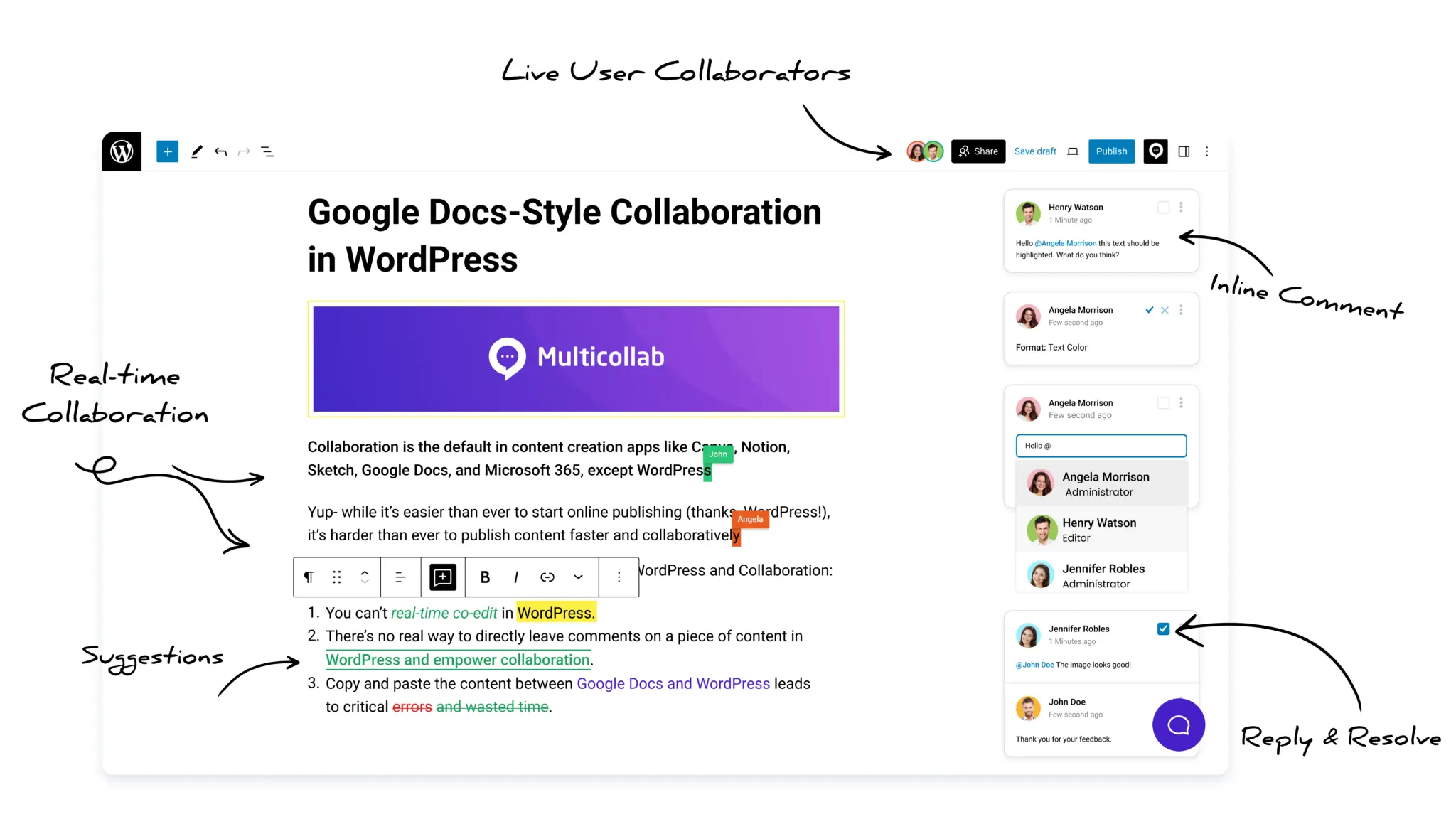
Multicollab is a WordPress collaboration plugin that adds these features directly into the Gutenberg editor. Writers draft content in WordPress. Editors leave inline comments on specific sentences. Reviewers suggest edits without overwriting the original text. The entire writing, editing, and approval process happens inside WordPress, and the content never needs to move anywhere.
How Multicollab replaces the Google Docs workflow inside WordPress
Multicollab is a WordPress collaboration plugin that adds the core features editorial teams use in Google Docs directly into the Gutenberg editor. Writers draft in WordPress. Editors review in WordPress. The content never moves between tools, so none of the formatting problems covered in this guide occur.
1. Inline commenting replaces Google Docs comments
In Google Docs, editors highlight a sentence and leave a comment in the right sidebar. Multicollab works the same way inside WordPress. Select any text or media block in the Gutenberg editor, press Ctrl + Alt + M on Windows or Cmd + Option + M on Mac, and a comment pane opens. Type the comment and save. The comment appears in the sidebar attached to the exact piece of content it refers to.
Editors can reply to comments, react with emojis, assign a comment to a specific team member using @mentions, and share a direct link to any comment. Clicking that link opens the WordPress editor at the exact comment, so reviewers do not need to scroll through the post to find the feedback.
One important note: Multicollab does not auto-save comments. You need to click Save Draft or Publish after adding a comment for it to persist.
2. Suggestion mode replaces track changes
Google Docs has a suggestion mode where editors propose changes without overwriting the original text. Authors then accept or reject each suggestion. Multicollab adds the same functionality to WordPress.
Administrators enable suggestion mode for specific posts, categories, or custom post types from the Multicollab settings. Once enabled, editors toggle Suggest Edits from the Multicollab icon in the editor and make their changes. Each contributor’s suggestions appear in a distinct color so authors can see who suggested what. New blocks added appear highlighted in green and deleted blocks appear in red. Authors accept or reject suggestions individually or use Accept All and Reject All in the Activity Center to process everything at once.
Suggestion mode and real-time collaboration cannot run simultaneously on the same post. Teams that need both features manage them at different stages of the workflow.
3. Real-time collaboration replaces simultaneous Google Docs editing
Google Docs lets multiple people edit the same document at the same time. Multicollab adds the same capability to WordPress on premium plans. Multiple editors open the same post and see each other’s changes instantly without refreshing the page.
Real-time collaboration supports up to five concurrent users. Two users cannot edit the same block at the same time, but they can work on different blocks simultaneously. Administrators enable real-time mode from Multicollab settings and choose between Multicollab’s default WebSocket connection or their own server configuration.
4. Guest collaboration replaces sharing a Google Doc with external contributors
In Google Docs, sharing a document with a freelancer or external reviewer means giving them access to your Google Drive. Multicollab handles external collaboration differently. Administrators send guests a secure link via email directly from the WordPress editor. Guests click the link and join the collaboration session without needing a WordPress account.
Guest roles control what each person can do. A Viewer can read the post and comments but cannot add or edit anything. A Commenter can add and reply to comments but cannot edit the post content. Guest links expire after 24 hours and administrators can enable or disable guest collaboration entirely from settings for security.
5. Notifications replace approval chains managed outside WordPress
Most editorial teams manage approvals through Slack messages and email threads that exist separately from the content itself. Multicollab connects directly to Slack and sends notifications to a designated channel when team members add comments, leave mentions, reply to threads, or accept and reject suggestions. Email notifications work the same way for teams that do not use Slack.
This keeps approval conversations tied to the content rather than scattered across separate tools.
6. Editorial checklists and workflows prevent publishing errors
Two features in Multicollab address a problem that Google Docs cannot solve at all: making sure posts meet editorial standards before they go live.
The editorial checklist lets administrators create a custom list of tasks for each post type, such as adding a featured image, checking internal links, or confirming the SEO fields are complete. Specific user roles can mark tasks complete, and administrators can block publishing entirely until all required tasks are finished.
Content workflows define the stages a post moves through from draft to publication, such as draft, review, and approval. Each stage has assigned users and integrates with comments and suggestions so every editorial decision happens inside WordPress and stays attached to the post it relates to.

Start your Multicollab trial and run your next post entirely inside WordPress.
Which editorial teams benefit most from fixing Google Docs to WordPress formatting issues
Content managers and editors at publishing teams
Content managers who oversee modern publishing teams and multiple writers deal with formatting cleanup on every post they publish. Keeping the writing, editing, and approval process inside WordPress removes that overhead completely and gives content managers full visibility over every draft without switching between tools.
Freelance writers and editors
Freelancers spend unpaid time moving drafts from Google Docs to WordPress and fixing formatting before delivery. Working directly inside the client’s WordPress site removes that step and makes the handoff faster for both sides.
WordPress site owners managing contributors
Site owners who manage multiple contributors need editorial control without giving everyone full backend access. A WordPress collaboration plugin lets owners add contributors with specific permissions so nothing goes live without their approval.
Frequently asked questions about Google Docs to WordPress formatting issues
Why does my formatting break every time I copy from Google Docs to WordPress?
Google Docs and WordPress store content in completely different ways. Google Docs applies its own formatting code to every line of text. WordPress uses a block based editor that does not recognise that code. Every time you paste content from Google Docs into WordPress, the two systems clash and formatting breaks as a result. The only way to stop this from happening repeatedly is to stop moving content between the two tools and write directly inside WordPress instead.
What is the best way to publish Google Docs to WordPress without losing formatting?
The most reliable way to publish Google Docs to WordPress without losing formatting is to write and collaborate directly inside WordPress from the start. Tools like Multicollab add Google Docs style collaboration features into the WordPress editor, so content never needs to transfer between tools. If you must transfer content, downloading the Google Doc as an HTML file and cleaning the code manually produces the cleanest result, but it requires comfort working with HTML and adds significant time to every post.
How do I fix hidden HTML tags in WordPress after pasting from Google Docs?
Open the post in WordPress and switch to the code editor view. Look for <span>, <div>, and <style> tags surrounding your text and delete them manually. For a faster method, paste your Google Doc content into a plain text editor like Notepad first, then copy from Notepad into WordPress. This strips the hidden tags automatically but also removes all your formatting including headings, bold text, and links, so you will need to reapply them inside WordPress.
Why are my images missing after copying from Google Docs to WordPress?
Google Docs does not save images as standalone files. It stores them inside the document linked to Google’s own servers. When you paste the document into WordPress, those image links break because WordPress cannot access Google’s servers to retrieve them. To fix this, download each image directly from the Google Doc, upload it to your WordPress media library, and insert it into the post manually. There is no shortcut for this step when transferring content between the two tools.
How do I stop spending 30 minutes fixing formatting every time I publish a WordPress post?
The formatting cleanup happens because your team writes in Google Docs and publishes in WordPress. Every transfer between the two tools creates the same set of problems: hidden code, missing images, broken headings, and collapsed lists. The only way to eliminate the cleanup time entirely is to remove the transfer step. A WordPress collaboration plugin like Multicollab lets your team write, edit, review, and publish directly inside WordPress, so there is no content to transfer and no formatting to fix.
What is the best Google Docs to WordPress plugin for editorial teams in 2026?
The answer depends on what problem you are trying to solve. If you need a faster way to transfer content from Google Docs to WordPress, tools like Wordable and Docswrite handle the transfer automatically and preserve most formatting. If you want to eliminate the transfer entirely and collaborate inside WordPress the way your team collaborates in Google Docs, Multicollab is the better option. It adds inline comments, suggestion mode, real time editing, and guest collaboration directly into the WordPress editor, so your team never needs to leave WordPress at any stage of the publishing process.
Stop fixing the same Google Docs to WordPress formatting issues every time you publish
The 10 formatting problems in this guide are not random errors. They are predictable consequences of moving content between two systems that store content differently. Every workaround covered in this guide reduces the damage but keeps the underlying workflow intact.
Keeping the editorial process inside WordPress removes the problem at the source. Writers draft in WordPress, editors review in WordPress, and nothing transfers between tools. There is no cleanup because there is nothing to clean up.
If your team publishes regularly and spends time fixing formatting after every post, the workflow is the problem.
Get started with Multicollab and eliminate formatting cleanup from your publishing workflow.
Download a Free Actionable Guide: 45+ Actionable Tips to Optimize Performance for High-Traffic WordPress Websites
Performance Optimization Techniques: Speed up your site with caching, image compression, and code minification.
Hosting and Scalability Suggestions: Learn to choose the right hosting solutions and scale efficiently.
Security and Protection Guidelines: Safeguard your site from DDoS attacks, malware, and performance threats.
Content and Plugin Management Tips: Optimize your database, plugins, and themes for peak performance.