

Table of Contents
To set up WordPress collaboration for small teams in WordPress, do four things: assign who writes, who reviews, and who approves; choose one place for feedback and keep it inside the WordPress editor; invite outside reviewers through guest links instead of creating accounts; and add tracked changes or real-time editing only if your process genuinely calls for them.
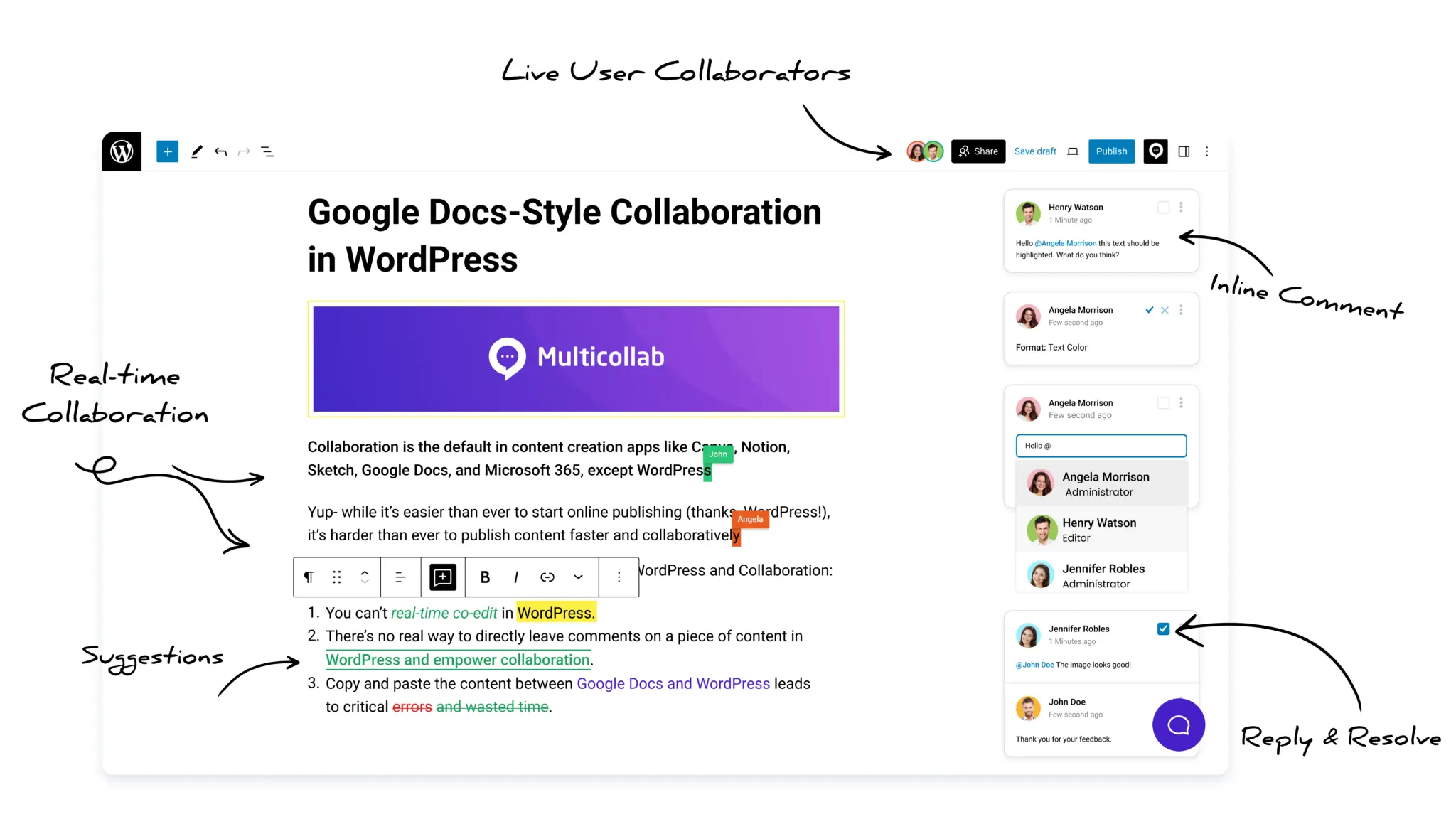
Multicollab is a popular WordPress plugin designed to bring Google Docs-style collaboration and editorial workflows directly into the WordPress Gutenberg block editor.
Key Takeaways
- To set up content collaboration in WordPress for a small team, agree on roles, keep all feedback inside the editor next to the draft, bring in outside reviewers through guest links, and only add tracked changes or live editing if your workflow needs them.
- WordPress has a free, built-in Notes feature that lets reviewers leave block-level comments with @mentions and reply threads directly in the editor. For a two or three person team leaving occasional feedback, this is often enough.
- A paid plugin earns its place when feedback becomes central to your work: comments on any text or media, file attachments, resolved-comment tracking, guest review without accounts, and tracked edits.
- Multicollab’s entry tier covers inline commenting and guest review. Suggestion Mode (track changes), real-time co-editing, the Editorial Checklist, and Slack notifications are in its Pro tier.
- Real-time co-editing in Multicollab supports up to five concurrent users and cannot run at the same time as Suggestion Mode. Guest reviewers at the entry tier can view or comment, not edit directly.
- The rule for a small team: match the plan to the workflow you actually run, not the one you might imagine. Buying the top tier “to be safe” is the most common and most wasteful mistake.
Most small-team friction comes from feedback scattered across Google Docs, Slack, and email, with no clear final version. The fix is not another app. It is moving review into the place the content already lives and setting simple rules for how feedback flows. The rest of this guide walks through each step and is honest about where free tools are enough and where a paid tool earns its cost.
Why small content teams feel the collaboration problem too
Small teams feel collaboration friction more sharply than large ones, because nobody on a team of three has a spare hour to chase a missing comment. Collaboration tools are often assumed to be for big newsrooms. The opposite is closer to the truth.
Picture the usual setup. A writer drafts in Google Docs because commenting is easy there. An editor leaves notes. Someone copies the finished piece into WordPress, and the formatting breaks. A client sends one more change by email after the post is already live. A large team has process to absorb that chaos. On a small team, it lands on whoever is free, and it lands often.
The cost is a slow leak, not a single disaster: ten minutes hunting for the latest version, a missed comment, a paragraph re-edited because someone did not see it was already fixed. Across a month, that is real time a small team cannot spare. Fixing it is less about buying software and more about deciding where the work happens.
What a small WordPress content team actually needs
A small team needs four things from a collaboration setup: feedback that stays with the draft, one version everyone trusts, a clean way to bring in outside people, and a simple path from draft to published.
- Feedback that stays with the draft, so a note never gets lost in an inbox or a chat thread.
- One version everyone trusts, so nobody edits an old copy or wonders which file is current.
- A clean way to bring in outside people, the occasional freelancer or client, without turning them into permanent users on your site.
- A simple path from draft to published, so the last step is not a frantic copy-paste.
What is not on the list matters as much as what is. A small team does not need elaborate multi-stage workflows, dashboards, or seat-based project management. It needs to stop losing feedback. Keep that in mind while setting things up, because over-buying is easy.
How to set up content collaboration in WordPress, step by step
Setting up small-team collaboration takes five steps, in order: define roles, choose one home for feedback, add guest access for outside reviewers, add tracked or live editing only if needed, and keep the final handoff inside WordPress.
Step 1: Define who writes, reviews, and approves
Before choosing any tool, assign three roles: who writes, who reviews, and who gives the final approval to publish. On a small team, one person often holds two of these, which is fine. The point is that everyone knows which role they hold on a given piece.
Most small-team confusion comes from skipping this step. When final approval is unspoken, drafts stall, or two people both assume the piece is done and it goes live half-edited. Writing the three roles down once takes five minutes and prevents hours of rework.
Step 2: Choose one home for feedback, inside the editor
The most important decision is where feedback lives. For a WordPress team, feedback should live as close to the draft as possible, which means inside the editor rather than in a separate document.
WordPress has a free, built-in option. The Notes feature, available in recent WordPress versions, lets reviewers attach comments to a specific block inside the editor, with @mentions and reply threads. For a team of two or three leaving occasional notes, native Notes may be all you need, and it costs nothing. Start there before spending anything.
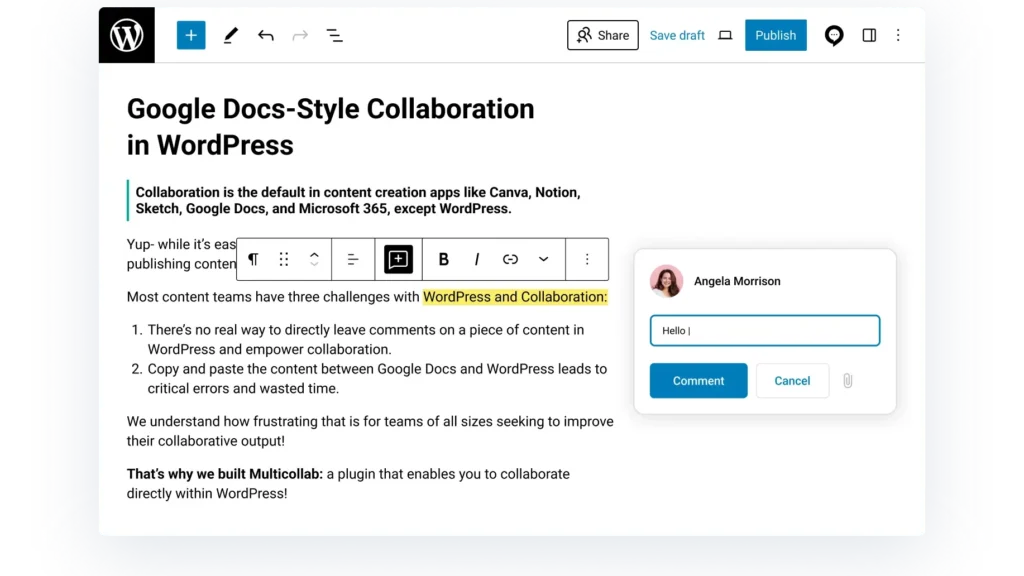
Native Notes runs out of room when feedback becomes central to how you work. A dedicated plugin like Multicollab adds inline comments on any text or media block, file attachments on comments, resolved-comment tracking, shareable links to a single note, and email notifications, all inside the Gutenberg editor. That turns commenting from a light annotation layer into the actual review process. Whichever you choose, hold one rule: one home for feedback, honored by everyone. A capable tool used half the time is worse than a basic tool used consistently.
Step 3: Add guest access for outside reviewers
Guest access lets an outside reviewer join a draft through a link without creating a WordPress account. Almost every small team needs this at some point: a client approving copy, a freelance editor on one project, an expert checking facts.
The friction is that WordPress normally expects every reviewer to have an account with a role, which means logins, permissions, and cleanup afterward.
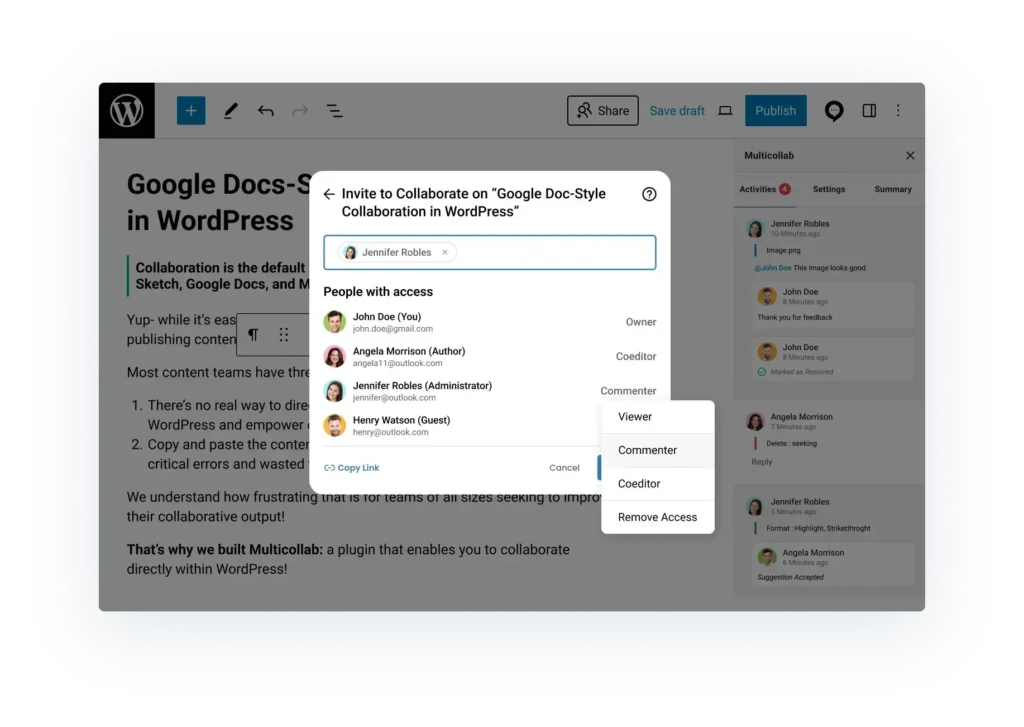
With Multicollab’s Guest Collaboration, you invite someone by email and they join through a link with no WordPress account, in a role limited to viewing or commenting. A client leaves feedback on the draft and never touches your dashboard. If your outside reviewers need to edit directly rather than only comment, that is a higher-tier capability, so match the setup to how your reviewers actually work.
Step 4: Add tracked changes or live editing only if your workflow needs them
Two features draw a lot of attention: Suggestion Mode, which shows edits as tracked changes you accept or reject, and real-time co-editing, where multiple people work in the same draft at once. Both are useful. Neither is essential for every small team.
Decide by looking at your actual process. If your editor prefers to propose changes and let the writer approve them, the way track changes works in a word processor, Suggestion Mode is worth it. If your team likes to edit a draft together live on a call, real-time co-editing helps. If your review is mostly comments and the writer makes the changes, you may not need either yet. In Multicollab, both features live in the Pro tier.
Real-time co-editing supports up to five concurrent users and cannot run at the same time as Suggestion Mode, so teams choose the mode that fits the task. This is the step where you decide whether your workflow justifies moving up a tier. Do not pay for track changes you will not use.
Step 5: Keep the final handoff inside WordPress
The most error-prone moment in small-team publishing is the handoff to published. If the draft lived in Google Docs, someone now pastes it into WordPress, fixes broken formatting, re-adds links, and hopes nothing was lost.
The fix falls out of the earlier steps. If the draft lived in the WordPress editor the whole time, because that is where comments and reviews happened, there is no copy-paste and no reformatting. The piece is already where it needs to be. Review it, get final approval from whoever owns that call, and publish. The last mile stops being a scramble.
Free vs paid: what a small team gets at each level
For a small team, the honest comparison is not “which plugin wins” but “how much collaboration do you actually do.” The table below maps common small-team needs to the free native tools and to Multicollab’s tiers.
Prices change with promotions, so check the Multicollab pricing page for current figures rather than relying on a number here.
| Capability | WordPress Notes (free) | Google Docs (free) | Multicollab entry tier | Multicollab Pro tier |
| Block-level comments in the editor | Yes | No (separate document) | Yes | Yes |
| Comments on any text or media block | Limited | Yes | Yes | Yes |
| File attachments on comments | No | Yes | No | Yes |
| Shareable link to a single comment | No | Yes | Yes | Yes |
| Works without leaving WordPress | Yes | No | Yes | Yes |
| Guest review without a WordPress account | No | Yes (Google account) | Yes (view or comment) | Yes (view or comment) |
| Custom permissions for who manages comments | No | No | No | Yes |
| Tracked changes (Suggestion Mode) | No | Yes | No | Yes |
| Real-time co-editing | No | Yes | No | Yes (up to 5 users) |
| Editorial checklist before publish | No | No | No | Yes |
| Slack notifications | No | No | No | Yes |
| Multilingual interface | Follows WordPress | Yes | No | Yes (6 languages) |
Common mistakes small content teams make
Small teams repeat a few avoidable mistakes when setting up collaboration: over-buying, splitting feedback across tools, over-provisioning outside reviewers, and drafting outside WordPress until the end.
- Buying the biggest plan “to be safe.” Differentiating features sit in higher tiers, which tempts teams to over-buy. Start with what matches your process and move up when you hit a real limit.
- Using two feedback homes at once. Comments in Notes and also in Slack and also in a document means feedback is effectively nowhere. Pick one and enforce it.
- Treating a client like a team member. Outside reviewers do not need full accounts. Guest access keeps your site clean and their experience simple.
- Leaving the draft in Google Docs until the end. Every minute the draft lives outside WordPress moves it closer to a broken copy-paste. Move it in early.

Conclusion: small team, one workspace
A small content team does not need a complicated system. It needs to stop losing time to the gaps between tools.
The setup comes down to a few decisions: agree on who does what, put feedback in one place inside the editor, bring outside reviewers in through guest links, and keep the work in WordPress from first draft to publish. Start with free native tools if they cover you, and move to a paid tool like Multicollab when feedback becomes central enough to need a real home, with the tier matched to how your team actually operates.
Done right, a team of three can move faster than a much larger team that is stitching tools together. The draft becomes the workspace, and everyone works around it instead of around each other.
Want to see whether it fits how your small team works? You can explore Multicollab and start a free trial.
Frequently Asked Questions
Do small teams really need a WordPress collaboration plugin?
Not always. A team of two or three leaving occasional comments may be fine with free WordPress Notes or Google Docs. A plugin earns its place when feedback becomes central: attached to the draft, open to outside reviewers without accounts, or needing tracked edits.
What is the difference between WordPress Notes and Multicollab?
Notes gives free block-level comments with @mentions and replies inside the editor. Multicollab adds comments on any text or media, file attachments, shareable links, guest review, and, in its Pro tier, Suggestion Mode and real-time co-editing for up to five users.
How can a client review a WordPress draft without an account?
Use Multicollab’s Guest Collaboration. You invite someone by email and they join through a link with no WordPress account, in a role limited to viewing or commenting, so they never touch your dashboard.
Does a small team need Suggestion Mode and real-time co-editing?
Only if your process calls for them. Suggestion Mode suits editors who propose changes for the writer to approve; real-time co-editing suits teams editing live. Both are Pro-tier, so treat them as an upgrade you make when the workflow requires it.
What is the lowest-cost way to set up collaboration in WordPress?
Start with free tools: WordPress Notes or Google Docs. If they cover you, you may not need to spend anything. When you outgrow them, Multicollab’s tiered pricing lets you pay only for the collaboration level you use.
Can more than one person edit the same WordPress post at once?
Yes, with real-time co-editing. Multicollab supports up to five concurrent users inside the Gutenberg editor. It is Pro-tier and cannot run alongside Suggestion Mode, so teams pick one mode per task.
Download a Free Actionable Guide: 45+ Actionable Tips to Optimize Performance for High-Traffic WordPress Websites
Performance Optimization Techniques: Speed up your site with caching, image compression, and code minification.
Hosting and Scalability Suggestions: Learn to choose the right hosting solutions and scale efficiently.
Security and Protection Guidelines: Safeguard your site from DDoS attacks, malware, and performance threats.
Content and Plugin Management Tips: Optimize your database, plugins, and themes for peak performance.