
Table of Contents
Key Takeaways
- The real issue isn’t Google Docs itself, it’s the split workflow that forces teams to manage the same content in two different systems
- Every piece of content gets reviewed more than once, first in Docs and then again after moving it to WordPress, which slows everything down
- Feedback loses meaning when it stays in Docs and doesn’t carry properly into the final content, leading to missed edits and confusion
- Multiple versions of the same post make it hard to know what’s final, so teams waste time checking instead of improving
- Keeping everything inside WordPress with Multicollab removes repeated work, reduces confusion, and makes the entire publishing process faster and clearer
Your writers are not slow. Your workflow has a problem.
Most WordPress teams write in Google Docs and publish in WordPress. That means two systems with a gap between them. Every post crosses that gap at least twice. First when someone pastes it into WordPress. Then when someone checks if the WordPress version matches the Google Docs version.
This guide shows you how to close that gap. You do it by moving drafting, feedback, review, and approvals into one place: the WordPress editor.
This requires a system inside WordPress that supports comments, suggestions, workflows, and controlled updates.
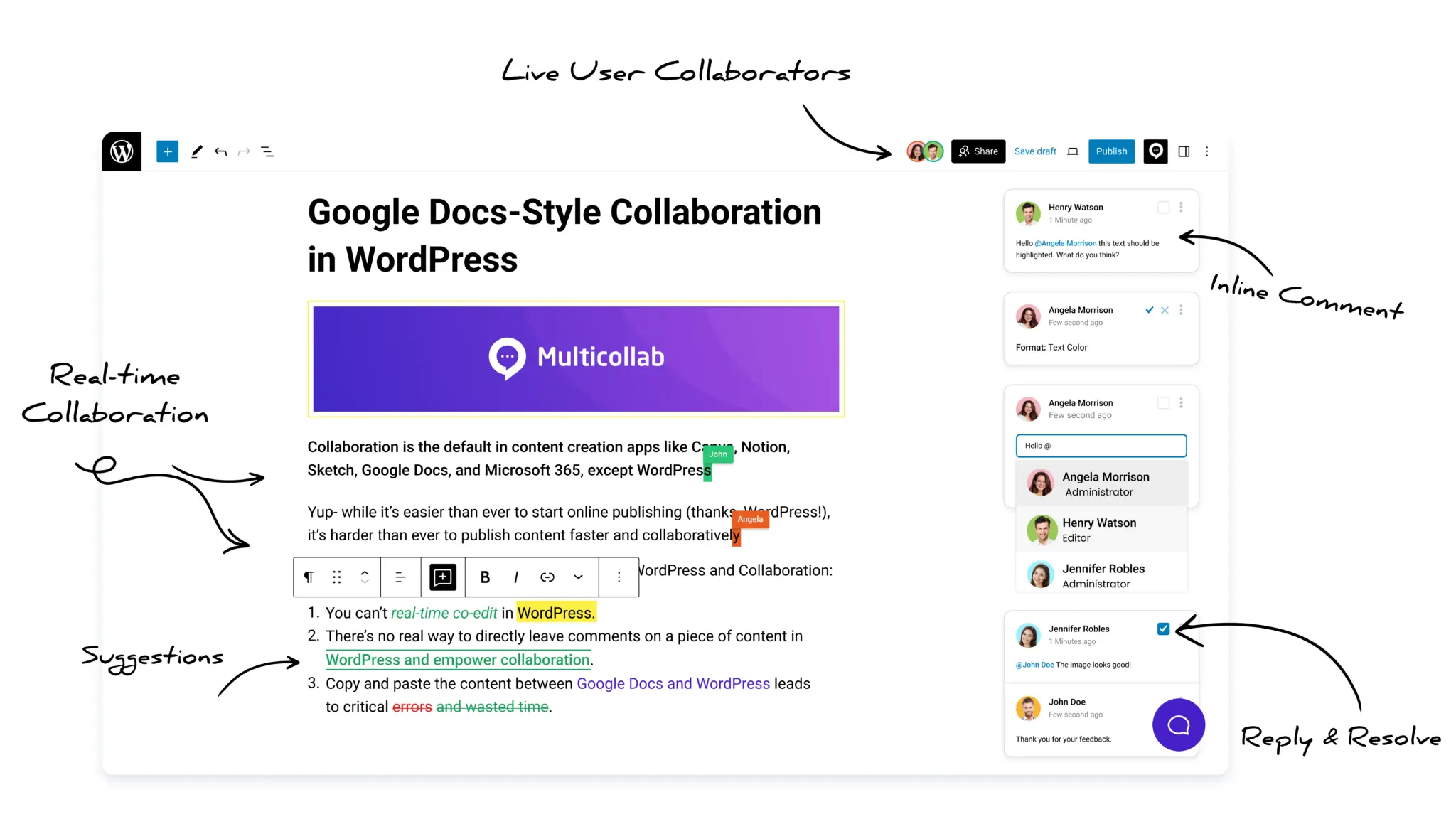
Multicollab provides this directly inside the WordPress block editor, so teams can run the entire editorial process without leaving the post.
How to collaborate on WordPress posts without Google Docs
You can collaborate on WordPress posts without Google Docs by running your entire editorial workflow inside the WordPress editor.
This includes:
- Creating drafts directly in WordPress
- Collecting feedback using inline comments
- Using suggestion-based editing for controlled changes
- Managing approvals with workflow stages
- Updating published WordPress content using version control
Multicollab enables all of these inside the block editor, so teams do not need external tools.
Why most WordPress teams still use Google Docs
Most teams use Google Docs because it is familiar and easy to start with. A typical workflow looks like this:
- A writer drafts in Google Docs
- Editors leave comments
- The writer updates the draft
- Someone copies the content into WordPress
- Formatting gets adjusted
- The post is reviewed again before publishing
This workflow splits content across two systems. Google Docs handles drafting and feedback. WordPress handles formatting and publishing.
Because these systems are not connected, teams repeat work at multiple stages.
The real problem is not Google Docs. It is the workflow it creates.
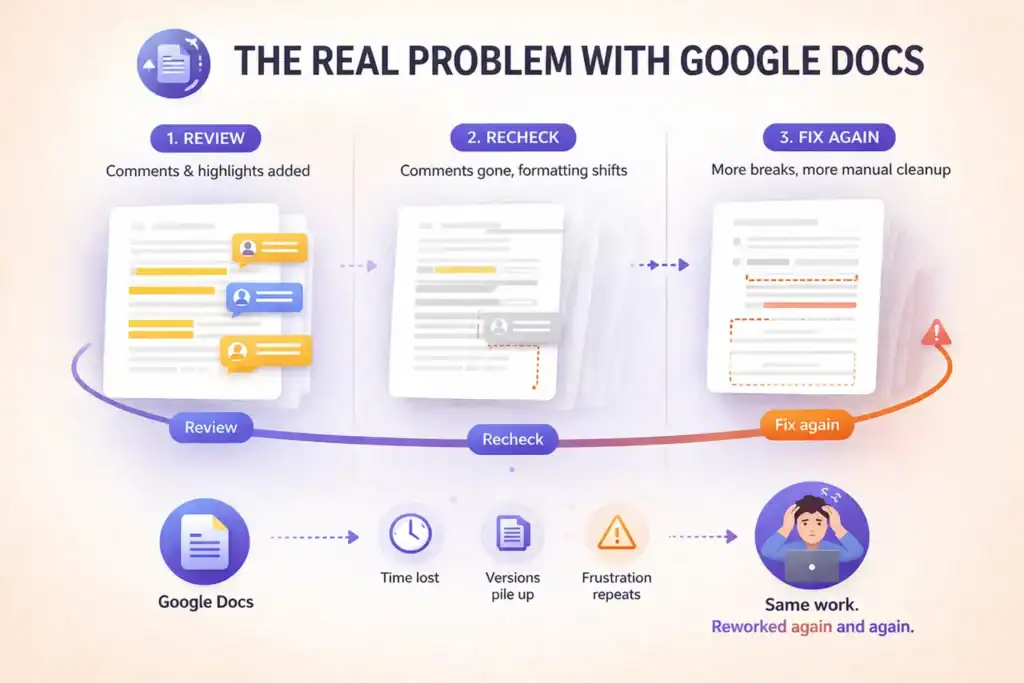
Google Docs is not broken. The problem is what happens when you separate collaboration from publishing. Teams manage the same content in two places. That adds work to every step.
Teams review the same content twice. Content gets reviewed in Google Docs. Then it gets reviewed again in WordPress after copying. That doubles the effort and slows every publish cycle.
Teams lose feedback context. Comments stay in Google Docs. The final version lives in WordPress. Editors cannot check what changed. This leads to missed edits and quiet errors.
Teams lose control of the final version. Multiple document links create multiple versions. Teams spend time figuring out which version is correct instead of improving the content.
Teams turn publishing into manual work. Every post needs to be copied, reformatted, and checked again. More posts means more manual fixes, more chances for errors, and more time on work that does not add value.
What this actually costs your team:
The cost comes from coordination between systems.
Each post typically goes through 4 to 5 handoffs across Google Docs and WordPress. At every handoff, someone checks versions, verifies edits, or fixes formatting.
For a team publishing 20 posts per month:
- 10–20 minutes per post is spent on version validation and rechecking
- That is 3 to 7 hours per month spent only on coordination
- As more contributors join, the number of checks increases
This time does not improve content quality. It only manages the gap between tools.
What collaboration inside WordPress should actually look like
Adding a collaboration tool to WordPress does not automatically fix things. Teams fail when they add new features without changing how the workflow runs.
A single-system approach means these five things:
Feedback attaches directly to content. Editors place comments exactly where issues exist inside the post. When feedback lives in a separate document, context gets lost.
Suggestions stay separate from execution. Editors propose changes without overwriting content. Authors review, accept, or reject each suggestion. Every change stays visible.
Discussion stays inside the post. When conversations move to Slack or email, feedback gets scattered and decisions become hard to track.
Approval follows a clear structure. Stages like Draft, Review, and Approved create a clear path. Without structure, content moves forward based on guesswork.
Published content gets updated through version control. Editing a live post directly risks pushing incomplete or unreviewed changes to readers.
When teams follow this system, they cut duplication and reduce the back and forth. When they skip it, the same problems come back inside WordPress instead of across two tools.
Before and after: What the workflow actually changes
Most Google Docs to WordPress workflows involve six steps across two systems. A single WordPress workflow cuts that to four steps in one place.

Step-by-step: How to replace Google Docs in your workflow
Teams don’t replace Google Docs by changing where they write. They replace it by moving drafting, feedback, review, and approvals into one system.
Multicollab provides that system inside the WordPress editor i.e. inline comments, suggestion mode, content workflows, and version-controlled updates, all in the same place where publishing happens. This is a great WordPress editorial workflow plugin for remote content teams.
Step 1: Create the draft in WordPress and establish a single source of truth
Stop maintaining parallel drafts.
Create the next post directly in the WordPress block editor. If a draft exists in Google Docs, move it once and stop editing the document. Multicollab activates inside the editor. From that point, all comments, suggestions, and updates happen on the same post.
Try it right now →
- Create a new post in WordPress
- Paste your current draft once
- Enable Multicollab on that post
- Do not return to the Google Doc
Result: The post becomes the only working version. Version reconciliation is gone.
Step 2: Move all feedback into inline comments on the post
Stop reviewing content in external documents.
Use Multicollab’s inline commenting to attach feedback to specific text or blocks. Editors can mention teammates, assign comments, and link directly to the exact issue inside the post.
Try it right now →
- Share the WordPress post with your editor
- Ask them to comment inside the post only
- Use @mentions to assign responsibility
Result: Feedback stays attached to the final content. One review layer removed.
Step 3: Enforce suggestion mode for all edits
Stop letting edits happen without visibility.
Enable Multicollab’s Suggestion Mode. Editors propose changes without overwriting content, and authors can accept or reject them individually or in bulk. Every change is traceable.
Try it right now →
- Enable Suggestion Mode in Multicollab settings
- Ask editors to use suggestions only without any direct edits
- Review suggestions from the Activity Center
Result: Every change has visibility and decision ownership.
Step 4: Run review and approval inside the post using workflow stages
Stop managing approvals across Slack threads and email chains.
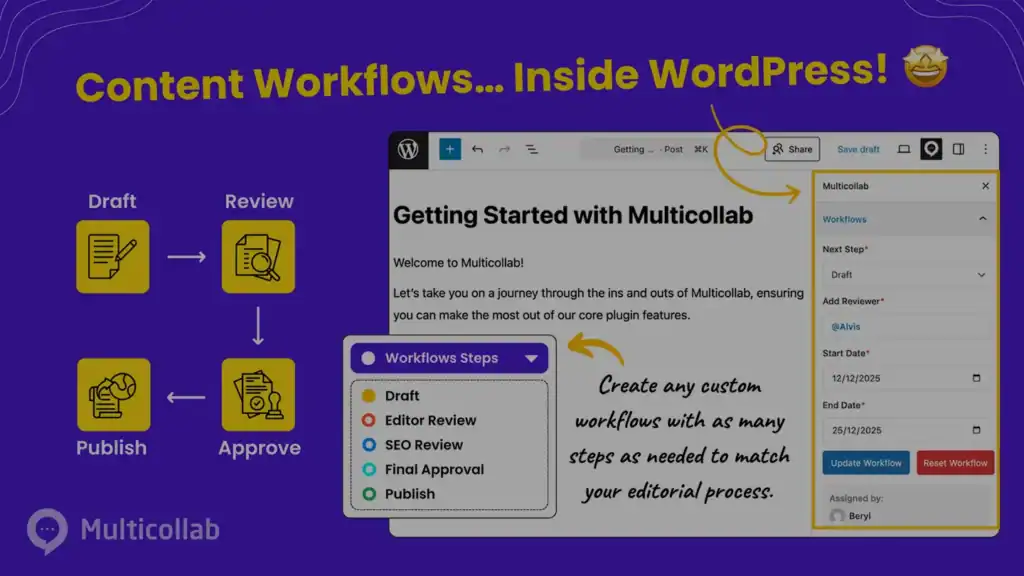
Use Multicollab’s content workflow to define stages — Draft, Review, Approved. Assign responsibility at each stage and track progress inside the post.
Try it right now →
- Define your stages: Draft → Review → Approved
- Move the post to “Review” when comments begin
- Resolve all comments before marking “Approved”
Result: Status and decisions tracked in one place. No external coordination needed.
Step 5: Update published content using version-controlled workflows
Stop editing live posts directly.
When updating a published post, create a new version in Multicollab, run review and suggestions on that version, then publish only after approval. This separates editing from publishing and prevents incomplete changes from going live.
Try it right now →
- Select a published post
- Create a new version for updates
- Use comments and suggestions on that version
- Publish only after it reaches “Approved”
Result: Published content is protected. Updates go through the same structured process as new posts.
What actually changes in your workflow
The difference arises from how many systems your workflow depends on.
| Before (Google Docs + WordPress) | After (WordPress + Multicollab) |
| Draft lives in Google Docs | Draft lives in WordPress from day one |
| Comments scattered in Docs | Comments attached to exact content blocks |
| Edits made directly, no tracking | Every suggestion tracked and attributed |
| Approvals managed in Slack/email | Approval stages enforced inside the post |
| Copy-paste on publish day | Content is already where it needs to be |
| Two review cycles per post | One review cycle, one system |
Where this workflow has constraints
This workflow removes duplication, but it requires structured usage.
- Comments and suggestions are saved when the post is updated. Teams must save or update the post to persist changes.
- Suggestion Mode and real-time editing cannot be used together. Teams must choose between structured review or simultaneous editing.
- Real-time editing works best when users avoid editing the same block simultaneously. Overlapping edits can create conflicts during collaboration.
These constraints define how teams should structure collaboration, not whether the workflow works.
Common questions before switching workflows
1. Can writers suggest edits without overwriting content?
Yes. Suggestion Mode tracks all changes separately from the original content. Editors can propose edits, and authors can accept or reject each change. Suggestion Mode is available in the Pro and Enterprise plans.
2. Can multiple people collaborate on the same post at the same time?
Yes, with real-time collaboration. Multiple users can edit a post simultaneously, with a limit of up to five concurrent users. Real-time collaboration is available in the Pro and Enterprise plans.
Suggestion Mode cannot be used at the same time as real-time editing.
3. Can external contributors collaborate without a WordPress account?
Yes. Multicollab supports guest collaboration. You can invite external users via email and assign roles:
- Commenter: can add and reply to comments
- Viewer: can view content and discussions but cannot comment
This is available in the Lite plan and above.
4. What happens to existing Google Docs drafts?
Move the draft once into WordPress. From that point, the WordPress post becomes the only working version.
5. Can teams control who can comment or approve changes?
Yes. Multicollab includes custom permissions.
Administrators can define who can:
- add or resolve comments
- accept or reject suggestions
- manage collaboration settings
Custom permissions are available in the Pro and Enterprise plans.
6. How do teams manage approvals and publishing stages?
Multicollab provides structured content workflows. Teams can define stages such as Draft, Review, and Approved, assign responsibilities, and track progress inside the post.
Content workflows are available in the Pro and Enterprise plans.
7. How do you track collaboration activity across posts?
Multicollab includes reports and activity tracking.
Teams can view:
- comment timelines
- user activity
- filtered reports by content, user, or time
Basic reporting is available in Lite. Advanced reporting is available in Pro and Enterprise.
8. Does Multicollab work with Gutenberg and different WordPress setups?
Yes. Multicollab works inside the WordPress block editor.
It also supports:
- WordPress Multisite
- headless WordPress setups
9. What if the team keeps using Google Docs in parallel?
The workflow breaks again. Parallel systems recreate version confusion, duplicate reviews, and scattered feedback. The transition only works when WordPress becomes the single system.
10. What if our team is used to Google Docs and resistant to change?
Resistance persists when teams continue using Google Docs in parallel. The workflow only works when WordPress becomes the single system for drafting, feedback, and approvals.
Why some WordPress editorial teams might still fail after switching
Installing the plugin is the easy part. Teams recreate the same fragmentation when they:
- Keep drafting in Google Docs out of habit
- Allow direct edits outside of suggestion mode
- Continue managing approvals in Slack
- Edit live posts without creating a new version first
Multicollab doesn’t fail in these cases. The workflow does. The plugin is only as effective as the discipline the team brings to using it as the primary system.
Run your next post without Google Docs; collaborate on WordPress posts
If the inline comments, suggestion mode, and approval stages feel right for how your team works, that is your answer.
You do not need a big rollout to test this. Try it on your next post. Explore Multicollab’s plans and find the right fit for your team.
Frequently Asked Questions (FAQs)
Can you collaborate directly inside WordPress without plugins?
No. WordPress does not provide native inline commenting, suggestion mode, or structured workflows. You need a plugin like Multicollab to enable full collaboration inside the editor.
What is the best way to collaborate on WordPress content?
The most effective approach is to run drafting, feedback, and approvals inside WordPress using inline comments, suggestion-based editing, and workflow stages. This removes the need for external tools.
Why do teams move away from Google Docs for WordPress workflows?
Teams move away from Google Docs because it creates duplicate workflows. Content is drafted in one system and published in another, which leads to version confusion, repeated reviews, and extra coordination.
Is WordPress good for managing editorial workflows?
Yes. With the right workflow structure and collaboration tools, WordPress can manage drafting, review, approval, and publishing in one system.
Do you still need Google Docs after moving collaboration into WordPress?
No. Once drafting, feedback, and approvals happen inside WordPress, Google Docs is no longer required for content collaboration.
A note for teams using Multicollab today: Multicollab’s free plan is ending on April 15, 2025. If your team has been using Multicollab without a paid subscription, now is the time to decide whether this workflow is worth keeping. If you are deciding before April 15, the Multicollab plan comparison page shows what is included at each tier and helps you find the right fit for your team size.
Already on a paid plan? Share this guide with the editor or content lead on your team. They are usually the ones absorbing the most friction from the current workflow.
Download a Free Actionable Guide: 45+ Actionable Tips to Optimize Performance for High-Traffic WordPress Websites
Performance Optimization Techniques: Speed up your site with caching, image compression, and code minification.
Hosting and Scalability Suggestions: Learn to choose the right hosting solutions and scale efficiently.
Security and Protection Guidelines: Safeguard your site from DDoS attacks, malware, and performance threats.
Content and Plugin Management Tips: Optimize your database, plugins, and themes for peak performance.