

Table of Contents
Key Takeaways
- Collaborative editing speeds up content creation by letting multiple people edit, comment, and review the same document in real time.
- Clear roles and structured feedback prevent confusion and make teamwork more efficient.
- Version control and activity tracking ensure edits are transparent, reversible, and easy to follow.
- Notifications and integrations with tools like Slack or email keep everyone aligned and aware of updates.
- Inline comments and suggestion modes make feedback specific, actionable, and easier to resolve.
- Using the right tool turns WordPress into a true collaboration hub, reducing delays, errors, and back-and-forth between platforms.
Collaborative editing is the process of multiple team members working on the same document simultaneously, leaving feedback, tracking changes, and managing approvals in one shared space. It eliminates the back-and-forth of email-based review cycles, reduces version control issues, and gives everyone on the team visibility into what has changed and who changed it.
Content teams that use collaborative editing consistently publish faster and with fewer errors than those that rely on sequential, file-based workflows.
This guide will show you how to master collaborative editing. Let’s dive in.
What is collaborative editing? (and what it’s not)
Collaborative editing is like a digital roundtable. Imagine your writer, editor, and CEO all working on the same document at the same time—without messy email chains or confusing file names like “Final_Final_v3.doc.”
But let’s get specific: collaborative editing tools let you:
- Edit the same document simultaneously
- Leave threaded comments with @mentions
- Track changes and revert to older versions
- Assign tasks or approvals
It’s not about chaos. You don’t lose control. Instead, you gain clarity by seeing who changed what, when, and why.
It’s not just for big teams. Even freelancers can use it to collaborate with clients or proofreaders.
Example workflows:
- Old-school method: Email a Word doc → Wait days for feedback → Merge conflicting edits → Miss the deadline.
- Collaborative editing: Work live in tools like Google Docs → Resolve comments in real-time → Publish faster.
For a broader look at how to structure this process across your whole team, our content collaboration guide covers workflows, roles, and tools in detail.
The top 5 benefits of collaborative editing
Faster turnarounds: No more waiting for feedback. Need a last-minute change? Tag your editor in a comment and fix it live.
Fewer mistakes: Ten eyes catch errors one person might miss. Typos, broken links, or tone issues? Gone.
Creative synergy: Your team drops a visual idea in the margins. Your CEO suggests a stronger hook. Everyone wins.
Transparent workflows: See exactly who made edits, rejected suggestions, or approved the final version. No more guessing games.
Works for teams of all sizes: Perfect for a blogger + editor duo or a 50-person content team.
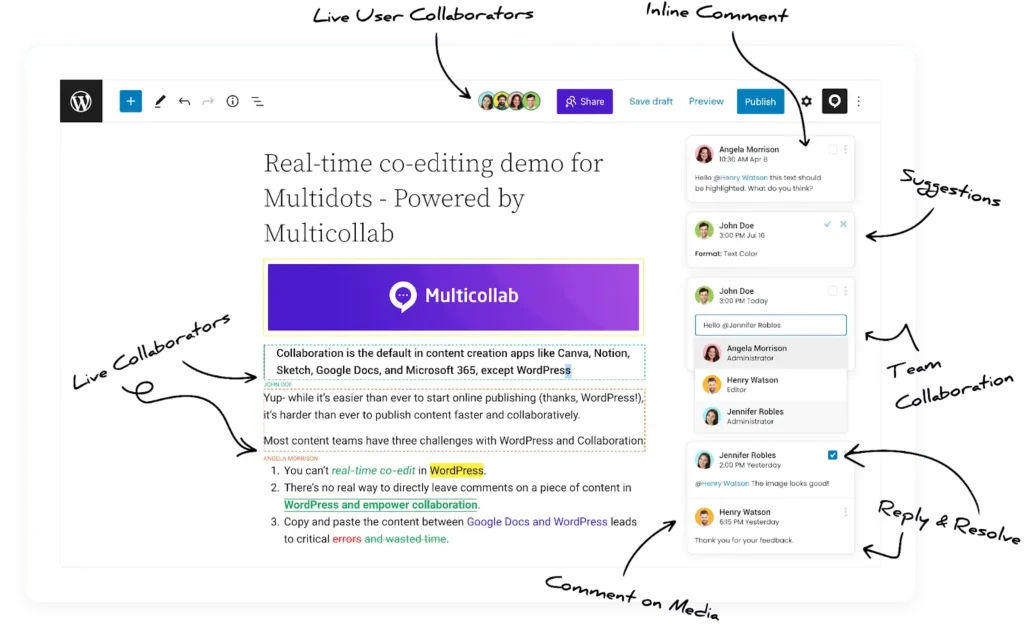
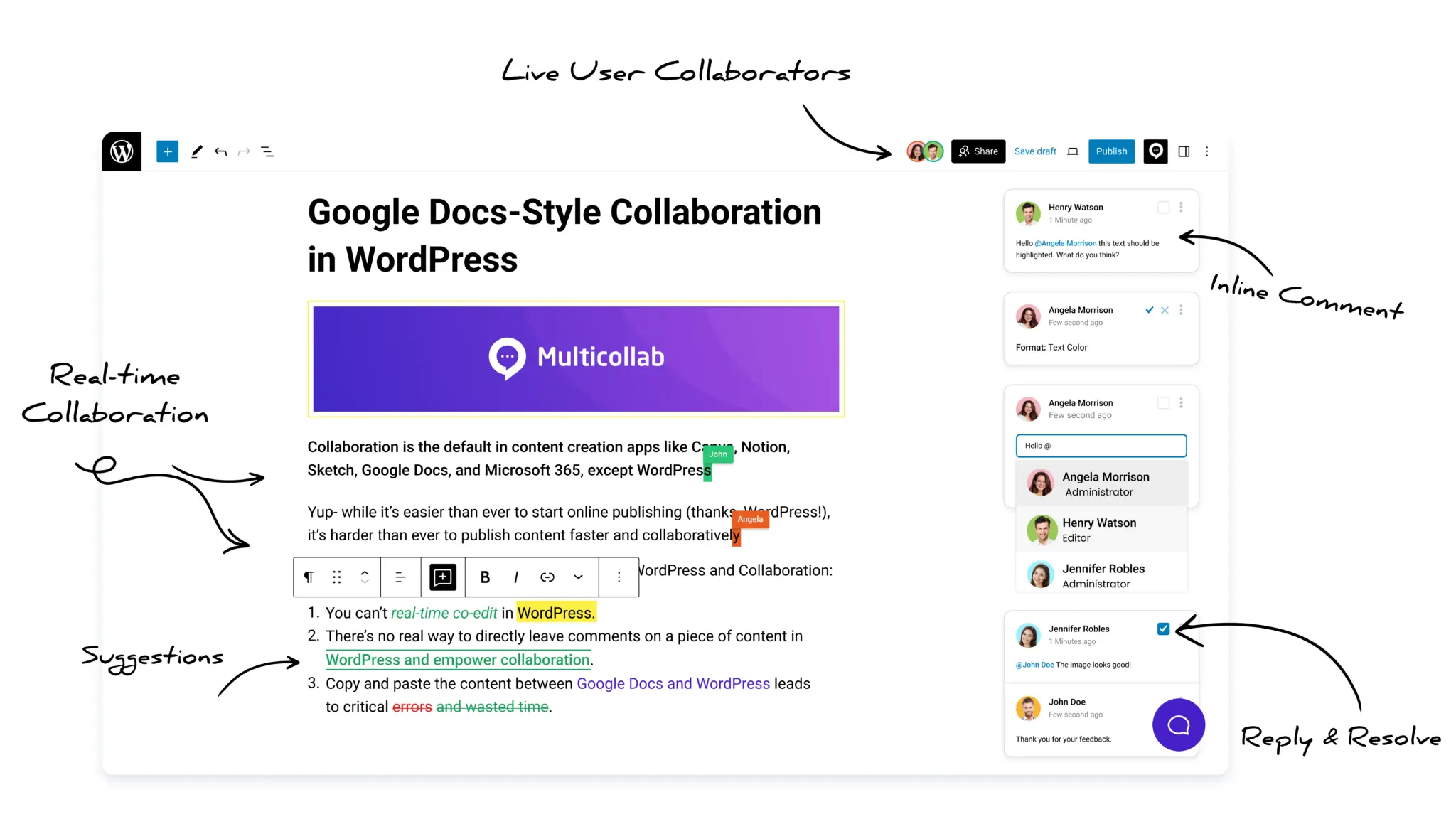
Multicollab, a robust collaboration plugin for WordPress, is designed to bring teams together in real time, ensuring smoother workflows and faster content approval.
From real-time collaboration to inline comments and suggestion modes, this plugin empowers teams to work more effectively without leaving the WordPress dashboard. Let’s dive into how Multicollab can revolutionize your content workflows.
Common collaborative editing challenges (and how to solve them)
Problem 1: “Too many cooks in the kitchen.”
Fix: Assign clear roles. Example:
- Writer drafts content.
- Editor polishes grammar and structure.
- Approver gives final sign-off. With features like Team Collaboration, you can mention users directly in comments and assign tasks to streamline your process.
Problem 2: “Version control nightmares.”
Fix: Multicollab’s version control ensures you never lose track of changes. You can easily revert to previous drafts and manage feedback seamlessly.
Problem 3: “Vague feedback like ‘make it better’.”
Fix: Train your team to give specific, actionable notes. Instead of “This section is weak,” try:
- “Add stats to support the third paragraph.”
- “Shorten the intro to 50 words.”
Template: “Action + Reason” feedback
Example: “Move this case study higher—it strengthens our credibility.”
What about native WordPress collaboration?
WordPress took its first real step toward built-in collaboration in WordPress 6.9, released in December 2025. The new Notes feature lets editors leave block-level comments directly in the editor, similar to commenting in a shared document.
It is a meaningful start, but it covers commenting only. Native WordPress still has no suggestion mode, no approval workflows, no editorial checklist, and no real-time co-editing, since real-time collaboration was removed from the WordPress 7.0 release in 2026. For teams that need the full editorial process, a dedicated plugin still fills the gap.
Choosing the right collaborative editing tool: A feature comparison
| Feature | Google Docs | Notion | WordPress + Multicollab | Other tools |
| Real-time editing | Yes | Yes | Yes | Varies |
| Inline comments and @mentions | Yes | Yes | Yes | Varies |
| Suggestion mode (accept/reject edits) | Yes | Limited | Yes | Varies |
| Version control | Yes | Yes | Yes | Varies |
| Approval workflows | No | No | Yes | Varies |
| Editorial checklist | No | No | Yes | Varies |
| Guest access without an account | Limited | Limited | Yes | Varies |
| Task assignments | Yes | Yes | Yes | Varies |
| Integrations | Limited | Limited | Extensive (Slack, email, and more) | Varies |
| Publishes directly to WordPress | No | No | Yes | Varies |
This comparison helps you choose the right content collaboration tool based on the features most important to your team’s workflow. The key difference for WordPress teams is the last row: Google Docs and Notion are great for drafting, but you still have to move the content into WordPress to publish. Multicollab keeps the whole process in one place.
If you are also looking to tighten up the review stage specifically, our content review best practices guide is a practical next step.
How to set up collaborative editing in 4 simple steps
Pick your tool: Start with free options like Google Docs or Notion. For WordPress content teams, go ahead with Multicollab.
- Approval workflows
- Integrations (Slack, Trello)
- Version control
Define roles: Who writes? Who approves? Clarify this upfront to avoid overlap. Example workflow:
- Day 1: Writer drafts the post.
- Day 2: Editor adds comments.
- Day 3: Approver gives final sign-off.
Building this into a larger plan? Our editorial strategy guide walks through how to align your team structure with your content goals.
Set deadlines: Use a shared calendar (like Trello or Asana) to keep everyone on track. Pro tip: Add buffer time for unexpected revisions.
Create a feedback system: Agree on how to give notes. Example:
- Use @mentions to tag teammates.
- Approved = Green, Needs urgent fixes = Red.
Template: “@John, can we add a CTA here? The conclusion feels incomplete.”
Key features of Multicollab: Real-time collaboration and beyond
Multicollab enhances collaborative editing within WordPress by offering powerful features that streamline your content creation and approval workflows. Below are the key features that make it stand out:
Inline comments: Leave comments directly on any text, image, or media block, making feedback specific and easy to address.
Suggestion mode: Propose changes as color-coded tracked edits that authors can accept or reject in bulk, without overwriting the original.
Real-time collaboration: Edit content with your team at the same time, with up to five people in the same post and changes syncing live.
Content Workflows: Move content through custom stages such as Draft, Review, Approval, and Publish, with reviewers assigned at each step. Workflows also apply to published content through controlled versioning.
Editorial Checklist: Set required and optional pre-publish tasks per post type, such as adding a featured image or meeting a word count, with alerts for incomplete items.
Version control: Revert to previous drafts with a clear history of all edits and changes.
Custom permissions: Control access by role so the right people can comment, suggest, and approve, keeping collaboration secure.
Guest collaboration: Invite external contributors through a shareable link, as a Commenter or Viewer, without needing a WordPress account.
Activity tracking and reports: Monitor user activity and track changes across all posts to keep approvals moving.
Slack and email notifications: Get notified when someone comments, mentions you, or approves content.
Note: Suggestion Mode, real-time collaboration, Content Workflows, and the Editorial Checklist are available on Multicollab’s Pro plan.
Sarah’s 10-person content team used to waste hours emailing WordPress drafts back and forth. With Multicollab, they now edit blog posts live, with everyone’s changes visible instantly. The content manager can drop a comment asking for a headline tweak, and the editor can update it, resolve the comment, and hit “publish”—all in just 20 minutes. As a result, their publishing speed has doubled, and they’ve eliminated version conflicts altogether.
Advanced collaboration hacks for power users
Once you’ve mastered the basics, these advanced tips will help you maximize your collaborative editing workflow:
Template use for faster content creation: Use pre-designed templates for blog posts, product descriptions, etc., to ensure consistency and speed up content creation.
Automated notifications: Set up automated notifications for comments, approvals, and edits in Slack or email to stay informed without having to check the document constantly.
Leveraging AI-assisted editing tools: Use AI-powered tools like Grammarly or ProWritingAid to quickly optimize your content for grammar, style, and readability.
Advanced workflow optimization: Implement custom workflows in tools like Asana or Trello to align with your collaborative editing tool (e.g., setting up content review steps that integrate with Google Docs or WordPress).
Frequently Asked Questions
What is collaborative editing?
Collaborative editing is a method of creating and refining content where multiple contributors work in a shared document at the same time. It includes real-time co-editing, inline commenting, tracked changes, task assignment via @mentions, and version history. The goal is to replace slow, file-based feedback cycles with a single live workspace everyone can access.
What is the difference between collaborative editing and co-authoring?
Co-authoring refers specifically to multiple people writing content together. Collaborative editing is broader and includes writing, reviewing, suggesting edits, approving changes, and managing the overall feedback process. Most content teams use collaborative editing even when only one person is writing, because the review and approval stages still involve multiple contributors.
What are the main benefits of collaborative editing for content teams?
The main benefits are faster turnaround times, fewer errors, clearer feedback, and full transparency over who made which changes. Teams no longer need to merge conflicting versions of a document or chase approvals over email. Everyone works from the same source, which reduces miscommunication and missed deadlines.
What tools are commonly used for collaborative editing?
Google Docs and Notion are the most widely used general-purpose collaborative editing tools. For WordPress content teams, Multicollab brings collaborative editing directly into the Gutenberg editor, with inline comments, suggestion mode, version control, guest access, and Slack and email notifications built in. This removes the need to draft content outside WordPress and then migrate it for publishing.
How do you manage feedback effectively in a collaborative editing workflow?
The most common issue is vague feedback that slows revision cycles. Train your team to use action-based comments: specify what needs to change and why. Using @mentions to assign comments to specific team members, and a simple status system (approved, needs revision) keeps everyone clear on what still needs attention. Tools that support threaded comments and resolved comment tracking make this easier to manage at scale.
Can external contributors participate in collaborative editing without a WordPress account?
Yes. Multicollab supports guest collaboration, which means external writers, clients, or reviewers can join the editing process in WordPress without needing their own WordPress account. You control what they can see and do, so your organizational data stays secure while outside collaborators can still leave comments and suggestions directly on the draft.
Conclusion
Gone are the days of lonely drafting and messy feedback loops. Collaborative editing lets teams create smarter, faster, and with fewer headaches.
- Assign roles to avoid chaos.
- Use tools that match your team’s size and tech stack.
- Train your team to give clear, actionable feedback.
And if you’re a WordPress user? Multicollab is the missing piece. It turns your CMS into a collaboration powerhouse with no more switching between tabs or losing track of edits.
If your team publishes on WordPress, get started by finding the right Multicollab plan for your team.
Download a Free Actionable Guide: 45+ Actionable Tips to Optimize Performance for High-Traffic WordPress Websites
Performance Optimization Techniques: Speed up your site with caching, image compression, and code minification.
Hosting and Scalability Suggestions: Learn to choose the right hosting solutions and scale efficiently.
Security and Protection Guidelines: Safeguard your site from DDoS attacks, malware, and performance threats.
Content and Plugin Management Tips: Optimize your database, plugins, and themes for peak performance.