
Table of Contents
Key Takeaways
- WordPress now has native collaboration. WordPress 6.9 introduced Notes, block-level commenting inside the editor, marking the official start of the Gutenberg collaboration phase.
- Real-time co-editing did not ship in core. It was removed from WordPress 7.0 in May 2026, so teams that need live co-editing still rely on a plugin.
- Native tools cover the basics: revision history, user roles, and now asynchronous block comments.
- Editorial teams need more than the basics: suggestion mode, workflow stages, an editorial checklist, and guest access are not part of core.
- Plugins like Multicollab fill that gap today, bringing Google Docs-style collaboration into the Gutenberg editor without waiting for core to catch up.
Yes, you can collaborate in WordPress, and in 2026 you can do it directly inside the editor. Multiple people can comment on content, suggest edits, manage who has access, and review work without leaving WordPress. WordPress includes revision history and role-based permissions natively, and as of WordPress 6.9 it also includes Notes for block-level commenting.
For full editorial collaboration, including real-time co-editing and suggestion mode, an editorial plugin like Multicollab adds what core does not yet offer.
That last point matters more in 2026 than it did a year ago, because WordPress collaboration just went through a real shift. Here is where things actually stand, and how to set your team up based on what works today.
What collaboration features does WordPress have natively?
For years, WordPress collaboration meant working around the editor rather than in it. That changed with WordPress 6.9, released in December 2025, which introduced the first real collaboration feature built into core.
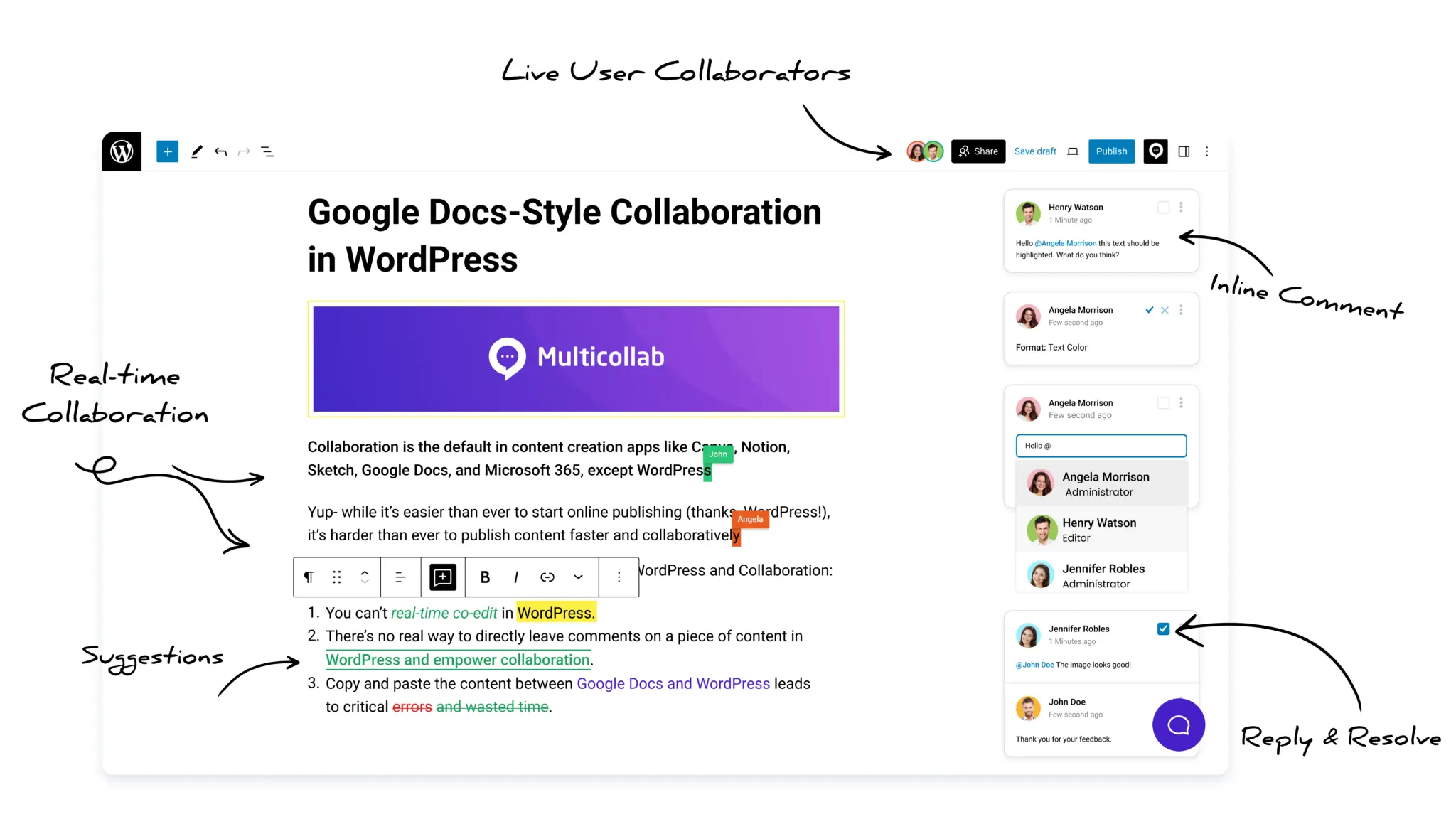
Notes (new in WordPress 6.9). Notes is a block-level commenting system. Editors and administrators can leave threaded comments on any block, reply to each other, and resolve discussions, all inside the editor. It works asynchronously, similar to leaving comments in a shared document. This was the official start of Phase 3 of the Gutenberg project, the phase focused on collaboration.
Revision history. WordPress automatically saves versions of every post and page. Your team can compare versions, see who changed what, and restore an earlier draft. This is the foundation of accountability in any WordPress workflow.
User roles and permissions. WordPress ships with a role system: Administrator, Editor, Author, Contributor, and Subscriber. You can assign access based on responsibility, so contributors can draft without publishing and editors can review without touching site settings.
Together, these cover the basics: comment, track changes over time, and control access. For a small team doing light review, native WordPress in 2026 is genuinely workable in a way it was not before. But for content-heavy teams, the platform is moving in a meaningful direction. The gap between what WordPress core offers and what a full editorial workflow actually requires is narrowing with every release.
What are the limitations of native WordPress collaboration?
The feature most teams were waiting for did not arrive. Real-time collaboration, the ability for several people to edit the same post at once like in Google Docs, was expected in WordPress 7.0. In May 2026, it was removed from the release. The decision came from Matt Mullenweg, who said the current approach was not robust enough for core yet. It may eventually ship as a separate plugin, but there is no firm date.
So in 2026, native WordPress gives you asynchronous commenting through Notes, but not live co-editing. For many editorial teams, that leaves real gaps:
- No suggestion or track-changes mode. Notes lets you comment on a block, but not propose a specific edit that an editor can accept or reject, the way you can in a word processor.
- No real-time co-editing. Two people still cannot safely work in the same post at the same moment without risking overwrites.
- No editorial workflow stages. Core has no built-in way to move content through Draft, Review, Approval, and Publish with assigned owners at each step.
- No editorial checklist. There is no native way to enforce pre-publish standards, like a featured image or a minimum word count, before a post goes live.
- Limited guest access. Bringing in an external client or freelancer to review still means creating an account or working around it.
These are exactly the gaps an editorial plugin is built to close.
How to collaborate in WordPress with Multicollab
Multicollab WordPress collaboration plugin brings Google Docs-style collaboration into the Gutenberg editor. It builds on what core now offers and adds the editorial features core does not. Here is how teams use it, organized by the job to be done.
Comment and suggest inline, like Google Docs
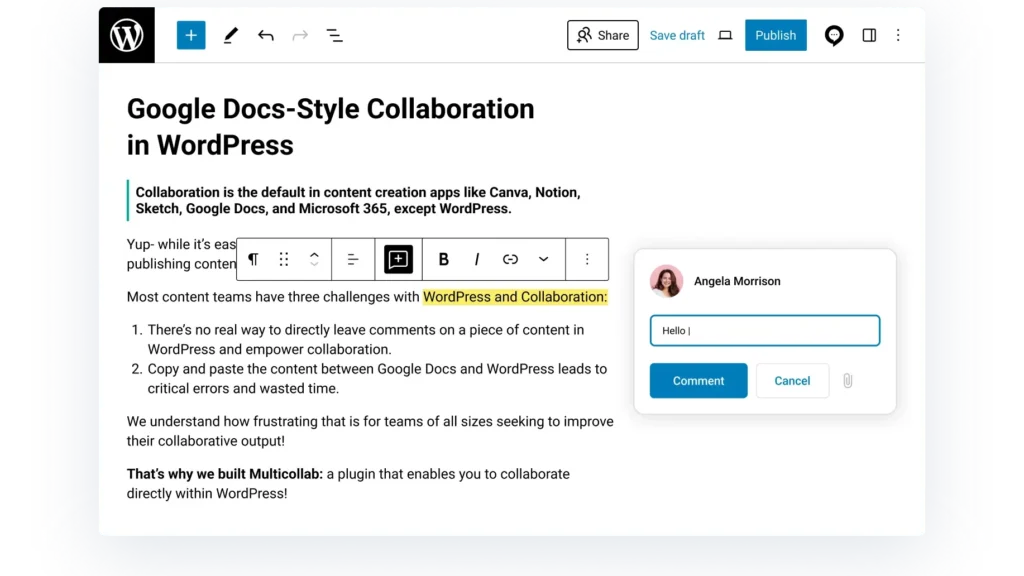
Team members can leave inline comments and @mention each other on any text, image, or media block. Beyond commenting, Multicollab adds Suggestion Mode: a color-coded track-changes view where edits show as additions or deletions that an editor can accept or reject in bulk. This is the propose-an-edit step that native Notes does not cover. As of the 5.3 release, collaborators can also respond to comments with emoji reactions for quick, lightweight feedback.
Co-edit in real time
Multicollab supports real-time co-editing for up to five people in the same post at once, with changes syncing live. This is the feature that did not make it into WordPress core, available today through the plugin.
Run content through workflow stages
With Content Workflows, admins can define their own editorial pipeline, for example Draft, Review, Approval, and Publish, and assign reviewers to each stage through @mentions. You can apply workflows to new content and to published content through a controlled versioning system, so updates to live posts go through the same review path.

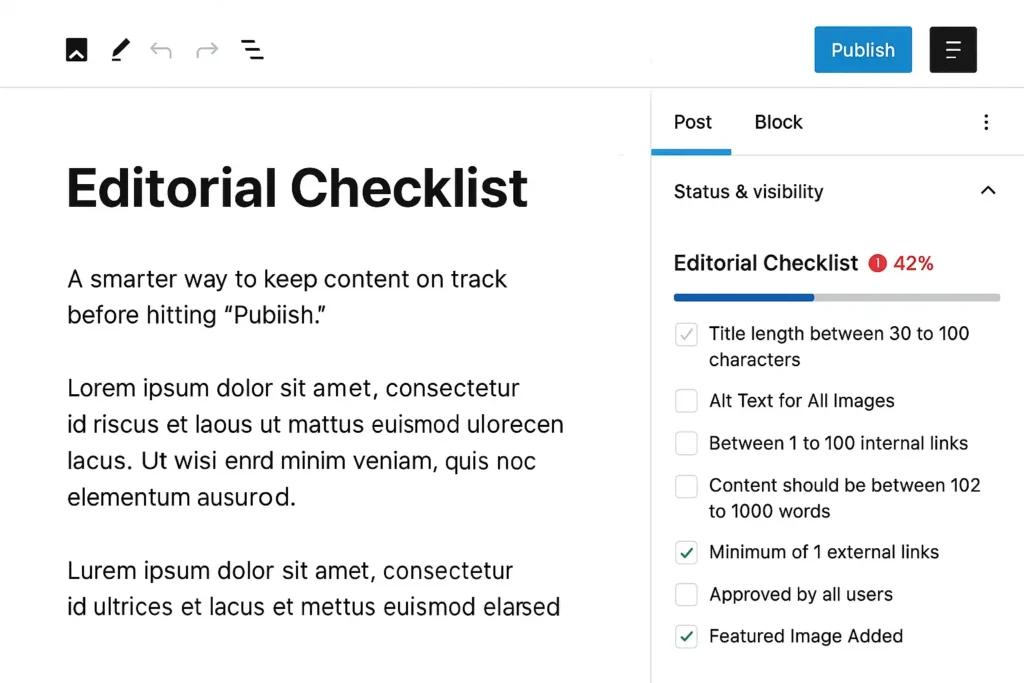
Enforce standards with an editorial checklist
The Editorial Checklist lets you set required and optional tasks for each post type, such as adding a featured image or meeting a word count. Required items can warn or block at publish time, so nothing ships half-finished. Each task can be set as optional or required for fine-grained control.
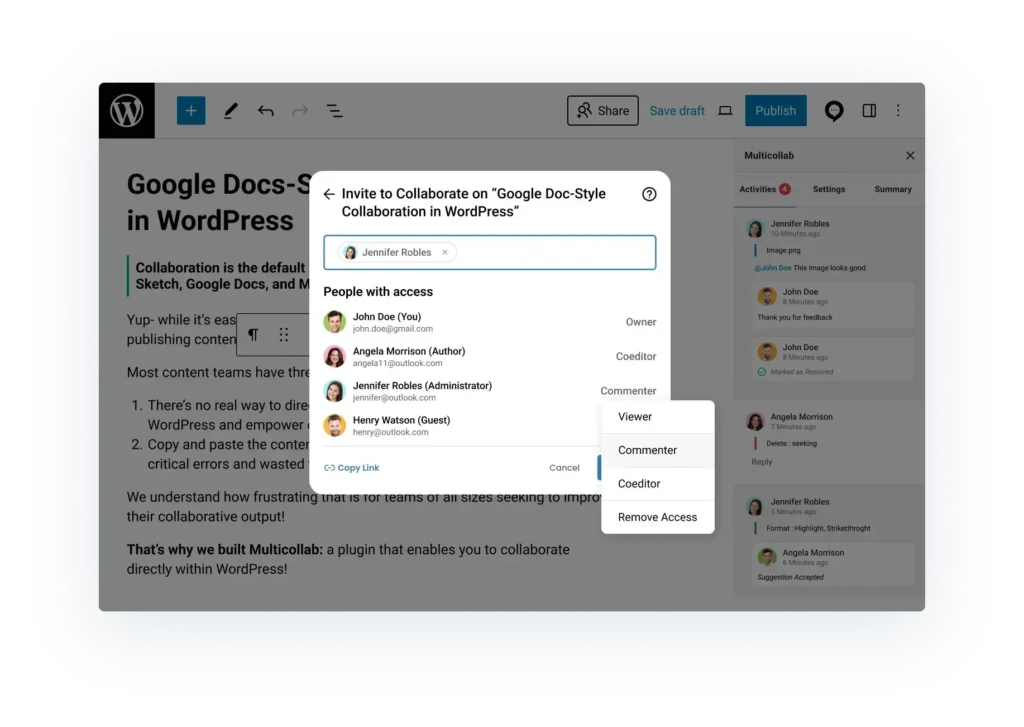
Bring in guests without accounts
You can invite external clients, freelancers, or reviewers through a shareable link, with roles like Viewer, Commenter, and Co-Editor. They participate without needing a WordPress account, and you control exactly what they can see and do.
Can you collaborate on video and dynamic content in WordPress?
One thing teams consistently struggle with is getting feedback on anything that is not plain text. Video, audio, CTA blocks, social feeds, and carousels are hard to review over email or screen-share calls.
Multicollab lets you comment and suggest on video, audio, and dynamic content blocks the same way you would on text. Feedback stays attached to the exact block it refers to, so a note about a video sits on that video, not buried in a separate thread. For teams producing rich content, this removes a real source of friction.
Is collaborating in WordPress more secure than Google Docs?
Collaborating through third-party tools means your content lives in multiple places, each one another access point to manage and secure. Working inside WordPress keeps drafts, comments, and approvals on your own site, under your own permissions.

Multicollab reinforces this with role-based permissions at every step, so the right people can manage permissions and have the right access from draft to publish, and nothing leaves your environment.
Native WordPress vs Multicollab in 2026
Here is how native WordPress collaboration compares to Multicollab at a glance.
| Capability | Native WordPress (6.9) | Multicollab |
| Block-level comments | Yes (Notes) | Yes |
| Inline @mentions | No | Yes |
| Suggestion mode (accept/reject edits) | No | Yes |
| Real-time co-editing | No (removed from 7.0) | Yes, up to 5 users |
| Comment on video and dynamic blocks | Limited | Yes |
| Editorial workflow stages | No | Yes |
| Editorial checklist with publish rules | No | Yes |
| Guest access without an account | No | Yes |
| Revision history | Yes | Yes |
| Role-based permissions | Yes (core roles) | Yes (collaboration roles) |
Native WordPress now covers commenting and the long-standing basics. Multicollab adds the editorial layer on top: suggesting, co-editing, workflows, and guest review. The editorial features (Suggestion Mode, real-time co-editing, Content Workflows, and the Editorial Checklist) are available on Multicollab’s Pro plan.

How to set up collaboration in WordPress, step by step using Multicollab
You can have a working collaborative setup in an afternoon. Multicollab works with the Gutenberg block editor on WordPress 6.4 or higher, and you need admin access to install it. Here is the sequence.
- Buy a plan and install the plugin. Choose a plan on the pricing page and download the plugin ZIP. In your WordPress dashboard, go to Plugins, then Add New, click Upload Plugin, select the ZIP, and click Install Now, then Activate.
- Configure your base settings. Open Multicollab from the admin menu and set your defaults: enable commenting, set role-based permissions for who can comment, suggest, and resolve, and turn on email notifications.
- Set roles and permissions. Decide who drafts, who reviews, and who publishes. Use WordPress roles for the basics, then set Multicollab permissions for who can add or resolve comments, suggest edits, and accept or reject suggestions.
- Turn on the features your team needs. Enable Suggestion Mode for tracked changes, Real-Time Collaboration for live co-editing, Content Workflows to move content through stages like Draft, Review, Approval, and Publish, and the Editorial Checklist to enforce pre-publish standards.
- Invite your team and any guests. Add internal collaborators through @mentions, and send a guest link to external clients or freelancers so they can review as a Viewer or Commenter without a WordPress account.
- Start collaborating. Open any post, highlight text to leave an inline comment, switch on Suggestion Mode to propose edits, and assign work to teammates with @mentions.
Once this is in place, your whole content process, from first draft to final approval, runs inside WordPress. For the full walkthrough with screenshots, see the Multicollab setup guide.
Frequently Asked Questions
Can multiple people edit a WordPress post at the same time?
Not with native WordPress. WordPress 6.9 added Notes for asynchronous block comments, but real-time co-editing was removed from WordPress 7.0 in 2026 and is not in core. A plugin like Multicollab supports up to five people co-editing the same post at once.
Does WordPress have built-in commenting for editing?
Yes, as of WordPress 6.9. The Notes feature lets editors and administrators leave threaded comments on individual blocks and resolve them inside the editor. It does not include suggestion or track-changes editing, which plugins add.
How do I manage team permissions in WordPress?
WordPress includes built-in roles: Administrator, Editor, Author, and Contributor. For finer control during review, plugins let you assign collaboration-specific roles like Viewer, Commenter, and Co-Editor.
Can I collaborate with external clients without giving them a WordPress account?
Yes. Multicollab supports guest collaboration through a shareable link, so external reviewers can comment and suggest edits without a WordPress account, with access you control.
Is collaborating in WordPress better than using Google Docs?
It removes the back-and-forth of copying content between Google Docs and WordPress, keeps feedback attached to the real published format including dynamic blocks, and keeps your data inside your own site.
What did WordPress 6.9 add for collaboration?
WordPress 6.9 introduced Notes, block-level asynchronous commenting, marking the official start of Phase 3 of the Gutenberg project. It was the first native collaboration feature in WordPress core.
What is the difference between WordPress Notes and Multicollab?
Notes is native to WordPress 6.9 and handles asynchronous block-level comments. Multicollab adds the editorial layer that core does not have: suggestion mode with accept and reject, real-time co-editing, content workflows, an editorial checklist, and guest access. If you only need to leave comments, Notes may be enough. If you run a full editorial process, Multicollab covers the rest.
How much does Multicollab cost?
Multicollab is a paid plugin. The free version was discontinued in April 2026. Plans start with Lite for core commenting and collaboration, Pro adds Suggestion Mode, real-time co-editing, Content Workflows, and the Editorial Checklist, and Enterprise adds onboarding and SLA support. You can see current pricing and start a free trial on the Multicollab pricing page.
What are the requirements to use Multicollab?
Multicollab requires WordPress 6.4 or higher with the Gutenberg block editor enabled, and it does not support the Classic Editor. You need admin access to install and configure it, and users must be logged in with a role that can edit or comment on content.
Conclusion
In 2026, the answer to “can you collaborate in WordPress” is clearly yes. WordPress 6.9 brought commenting into the editor with Notes, a real milestone. But the real-time co-editing many teams expected in 7.0 did not ship, and core still has no suggestion mode, workflow stages, or editorial checklist.
If your team needs full collaboration now, you do not have to wait for core to catch up. Multicollab brings inline comments, Suggestion Mode, real-time co-editing, Content Workflows, and an Editorial Checklist into the Gutenberg editor, so your team can write, review, and publish in one place.
Download a Free Actionable Guide: 45+ Actionable Tips to Optimize Performance for High-Traffic WordPress Websites
Performance Optimization Techniques: Speed up your site with caching, image compression, and code minification.
Hosting and Scalability Suggestions: Learn to choose the right hosting solutions and scale efficiently.
Security and Protection Guidelines: Safeguard your site from DDoS attacks, malware, and performance threats.
Content and Plugin Management Tips: Optimize your database, plugins, and themes for peak performance.